What is the “Driver is Unavailable” error?
The “Driver is Unavailable” error means Windows is unable to locate the right driver required for issuing commands to your printer. This could be due to having incorrect, corrupted, or outdated drivers installed, or due to your system not having the necessary access permissions.
For your system to interact with a printer, it needs dedicated software (drivers) to act as an intermediary between the PC and the printer. The drivers translate requests from the operating system into commands that the printer’s specific make and model can understand and execute. If there’s a problem with the driver, communication breaks down, triggering the “Driver is Unavailable” error.
The same is true for other hardware components, although you may not always receive a driver is unavailable message when there’s an issue. For example, faulty graphics drivers may need updating if your streaming is slow or games are lagging or crashing.
How to fix the “Driver is Unavailable” error
If your printer driver is unavailable on Windows 11 or Windows 10, isolate and fix the problem by working through the following steps until the “Driver is Unavailable” message stops appearing.
Update your printer driver automatically
Ensuring that you have the latest driver version installed is one way to fix the “Printer Driver is Unavailable” error. The quickest way to update your drivers is to do so automatically with a dedicated tool like AVG Driver Updater.
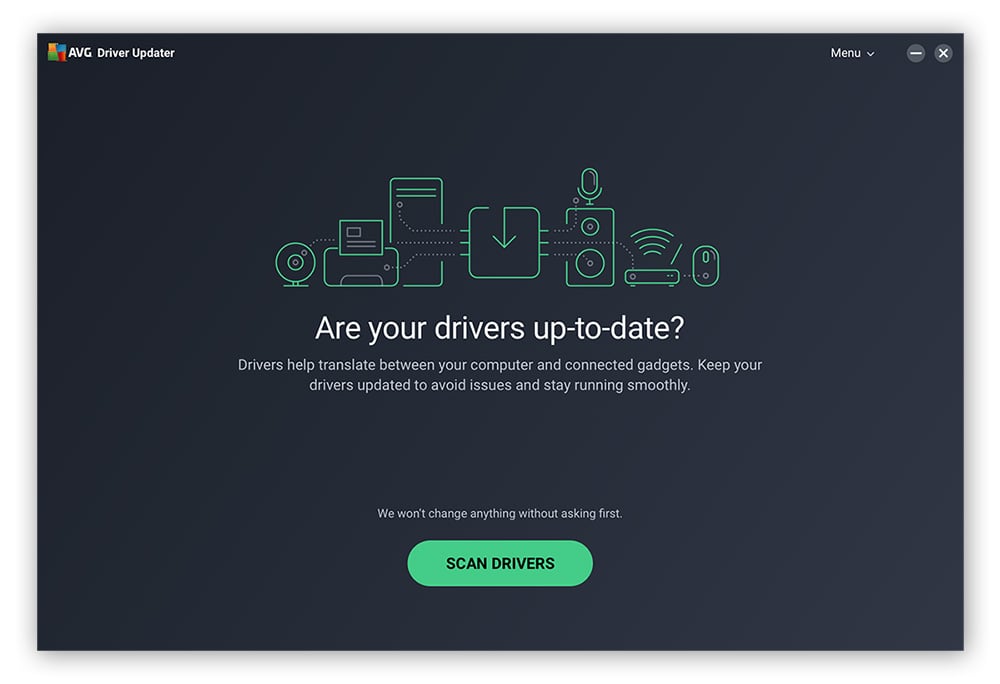
Here’s how to update your printer driver with AVG Driver Updater:
-
Download, install, and open AVG Driver Updater.
-
Click Scan drivers or Scan Again.
-
Click Update All to update all outdated drivers. Alternatively, uncheck any drivers you don’t want to update, then click Update Selected.
Manually update drivers
You can also update your printer drivers on Windows 11 and Windows 10 manually:
-
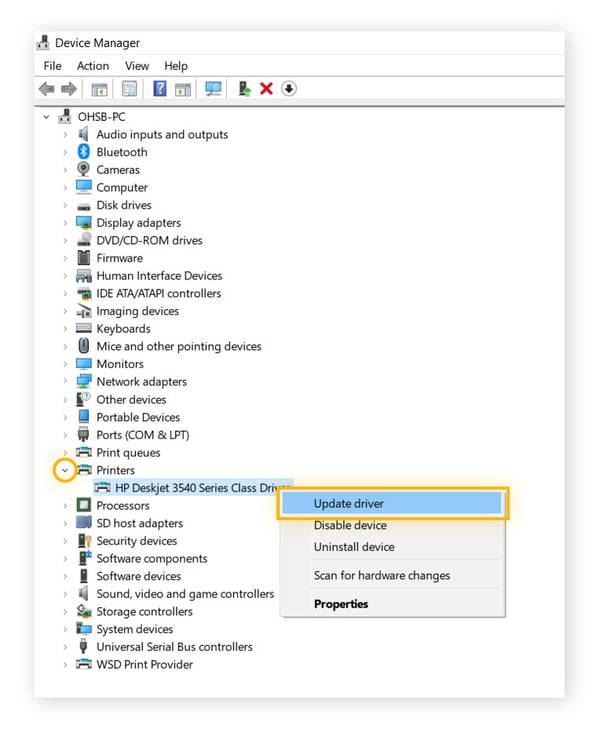
Open the Device Manager via the Start menu.
-
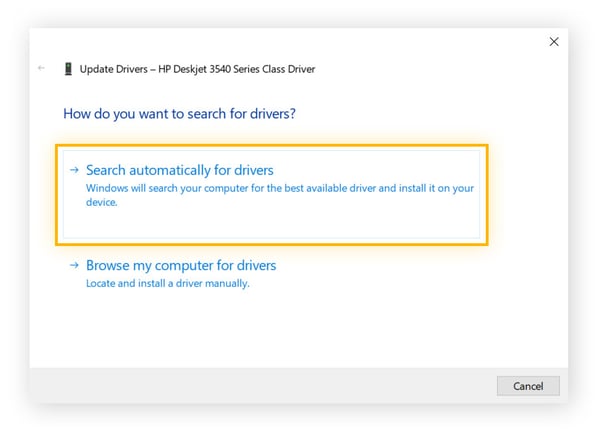
Expand the Printers category, then right-click your printer, and select Update driver.
-
Click Search automatically for drivers, then follow the on-screen installation instructions (if an update is available).
HP
If your HP printer driver is unavailable, you can either use a driver updater tool or update it manually. Locate your printer’s name on the outer shell of your printer, then go to the HP Printer Driver Downloads page. Enter the name of your printer in the search box, then download and install the appropriate driver.
Here are some other tips for fixing common printer “Driver is Unavailable” HP errors:
-
Check your internet connection: If your HP printer uses HP+, a faulty internet connection can disrupt activation or cloud features, which may present errors alongside driver issues. If you have connection problems, see why your internet is slow and how to fix it.
-
Use a universal driver: You can also try using the HP universal print driver, which works across several models.
-
Use HP’s driver diagnostic tool: HP’s Print and Scan Doctor can potentially diagnose your printer driver issue and offer a solution.
-
Roll back HP’s update: If your HP printer worked fine before updating, roll back the driver update using Windows Device Manager.
Brother
If you have a Brother printer, you first need to access the Brother downloads page. From here, you can either search for your exact printer in the search bar or navigate to it via the printer categories.
Once you find your printer model, select your OS type and version from the list, and click OK. Choose the driver you wish to download, then click Agree to the EULA and Download, and follow the prompts.
Epson
To manually update the drivers on an Epson printer, first go to the Epson support page. From here, search for your printer model or find it via the categories listed. Choose your OS from the drop-down list, then click GO, and follow the on-screen prompts to download and install your chosen driver.
Canon
Visit the official Canon support page to manually update your Canon printer driver. Here, you can either search for your product in the search bar or click the Printers category below it and navigate to your printer from there.
Now, select your Operating System and Version from the drop-down menus, and download the available driver you need. If you’re unsure which driver you need, click Details under each driver to see a full File Description. Download info and installation instructions can also be found there to help you complete the process.
Roll back to a previous driver
If your printer driver recently updated before the error appeared, an issue with the update might be to blame.
Here’s how to roll it back to the previous version on Windows 11:
-
In the Start menu, search for and launch Device Manager.
-
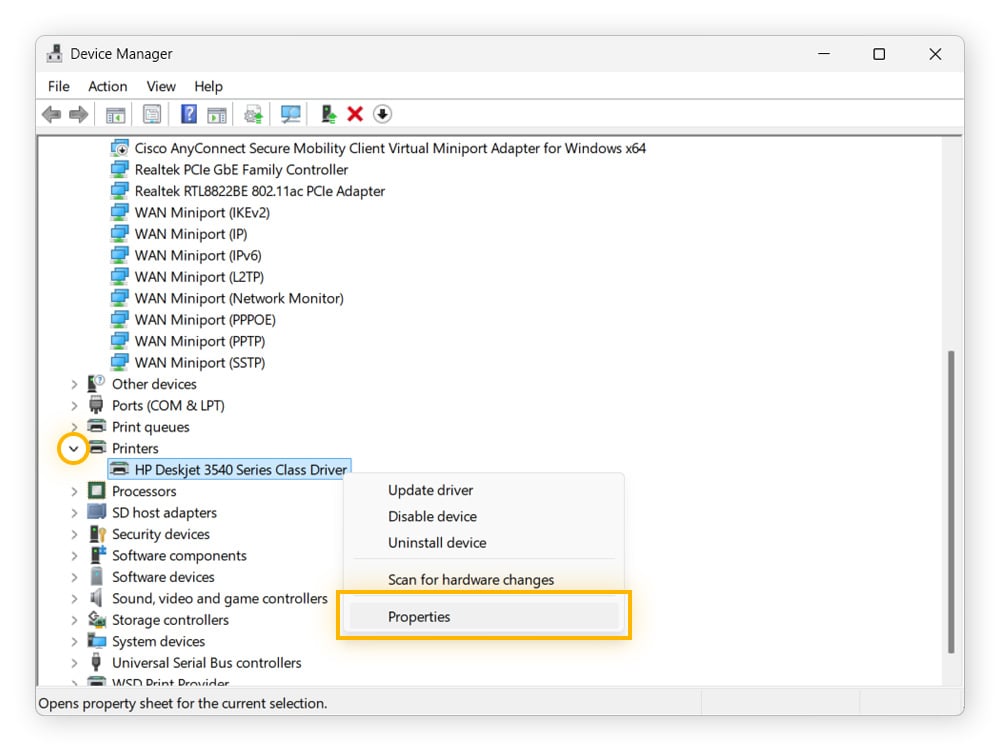
Expand Printers > right-click the relevant printer > Click Properties.
-
Click the Driver tab > Roll Back Driver > Yes or OK, if prompted.
If the option to roll back is grayed out, then your system probably doesn’t have a previous driver version to roll back to. In this case, you’ll need to uninstall your current version and reinstall a different version.
Here’s how to roll back your driver on Windows 10:
-
Open the Control Panel via the Start menu > Click View devices and printers.
-
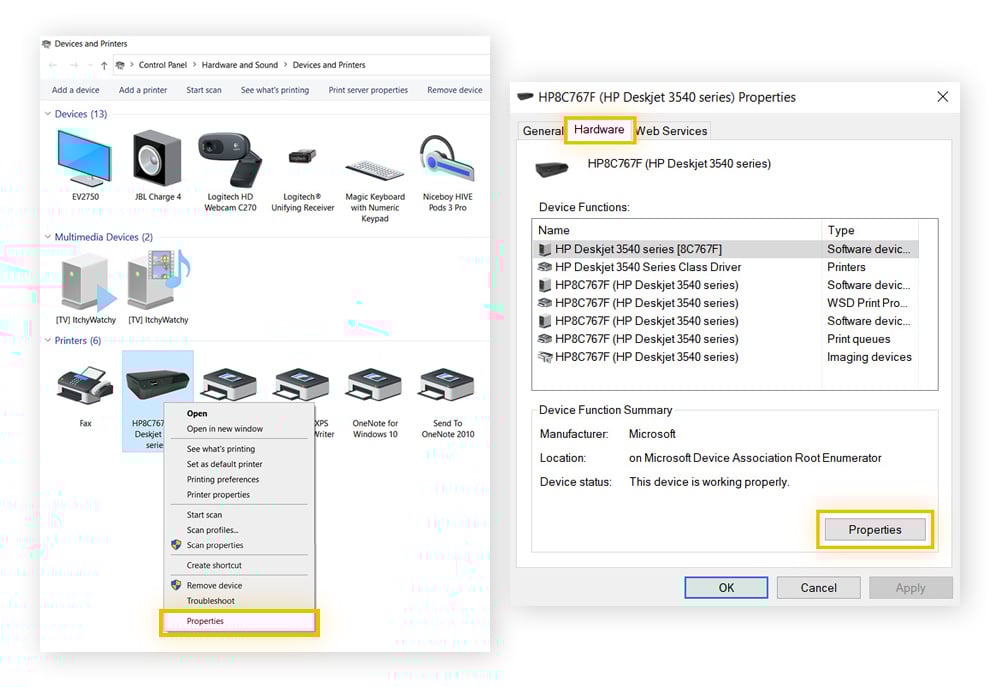
Right-click the affected printer > Select Properties > Go to the Hardware tab > Click Properties.
-
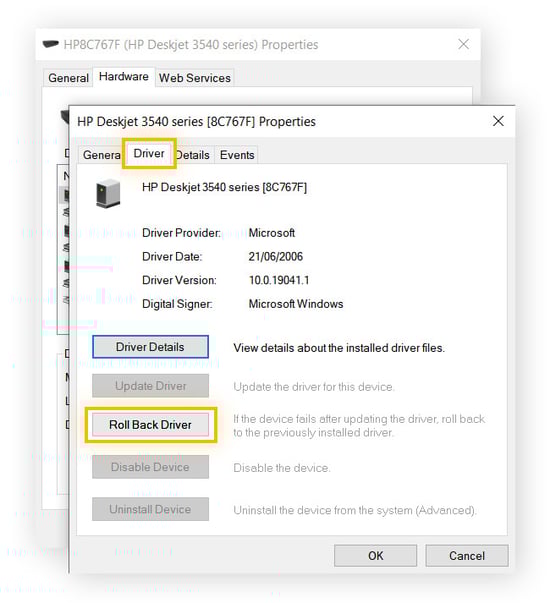
In the new pop-up window, go to the Driver tab > Click Roll Back Driver > Yes or OK if prompted.
If your driver is corrupted, you can uninstall and then reinstall it to resolve the error. Here’s how on Windows 10 and 11:
-
Launch Device Manager.
-
Expand Printers, right-click your printer, and select Uninstall device.
-
Reinstall your driver.
Update Windows OS
Compatibility issues can arise if you’re not using the latest version of Windows, or if your driver isn’t compatible with the version you’re running.
Here’s how to make sure your operating system is fully updated on Windows 10 and 11:
-
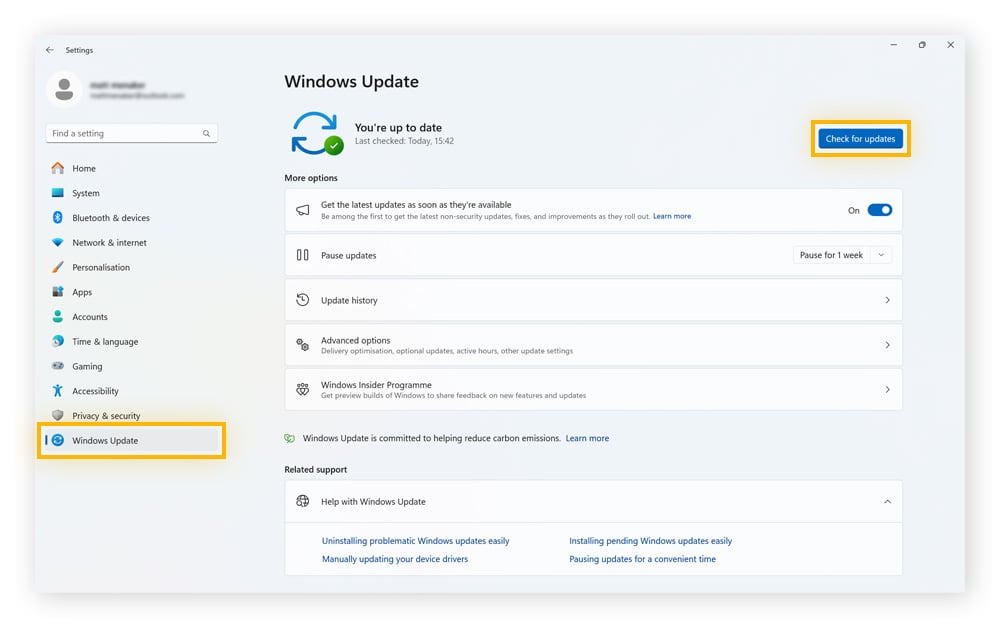
Open Settings through the Start menu, then click Windows Update (on Windows 10, it will be called Update & Security).
-
Click Check for updates in the top right-hand corner.
-
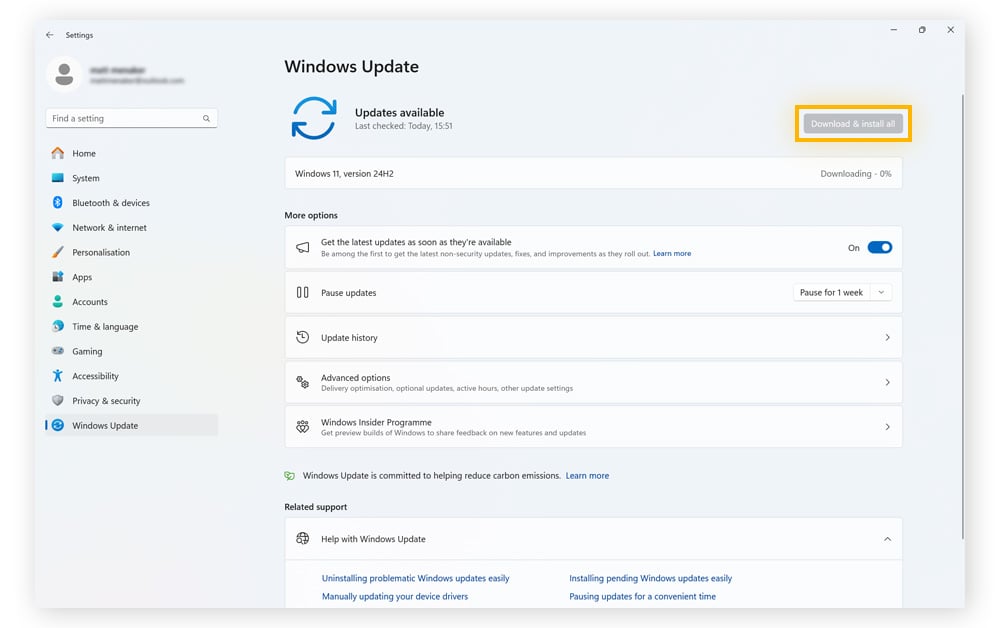
If any updates are available, click Download & install all.
If your Windows update gets stuck, check out how to fix Windows update errors. Aside from possible driver issues, you shouldn’t use an outdated version of Windows for security reasons. An outdated operating system can leave you more vulnerable to both known and zero-day attacks.
Common causes of driver errors
There are many reasons why you might encounter a printer driver error, including problems with the driver itself or issues with your operating system. That’s why it’s important to learn how to hunt down drivers to boost PC performance and fix common driver problems in Windows.
Here are some common causes why your printer driver is unavailable:
-
Faulty drivers: Occasionally, manufacturers accidentally release driver updates containing bugs or glitches — particularly if they’re rushing to patch up a security exploit. In this case, fixing the issue simply requires rolling back your driver to the previous version.
-
Outdated drivers: On the other hand, if you don’t keep your drivers updated, they can cause performance issues and eventually become incompatible with your devices. The best driver update software keeps track of driver updates for all your hardware and makes sure you don’t miss a new release.
-
Corrupted drivers: Like other files stored on your PC, drivers can become corrupted due to malware, hardware bugs, unexpected shutdowns, or interference from other software.
-
Outdated operating system: Even if all your drivers are fully functional and updated, if you’re not running the latest version of your operating system, compatibility problems can result in a “Driver is Unavailable” error.
-
Windows updates: Drivers are written specifically to integrate with a particular operating system, so changes to your system via Windows updates can cause compatibility issues. Until a driver update is released to fix the problem, roll back Windows by uninstalling the latest update.
-
Incorrect installation: If you manually update your drivers, it’s easy to install the wrong driver. Alternatively, you may have the correct driver, but have failed to install it properly, resulting in the printer driver being unavailable. Using automatic driver updating software like AVG Driver Updater can help eliminate incorrect installations.
-
Print spooler needs restarting: Windows’ print spooler orders print jobs and puts them in the printing queue, so a mix-up here could cause the printer driver to show up as unavailable. Try restarting it by pressing Win + R, then Enter > Scroll down to Print Spooler > Right-click it and select Restart.
-
Administrator access: Printer drivers modify system-level components. If you install or update a driver without administrator privileges, the driver may only partially install or fail to install. Try updating the printer driver from an administrator account.
Troubleshooting tips
Does your printer still say the driver is unavailable, even after you’ve updated it and tried all the other fixes? Here are a few more troubleshooting options to try:
-
Windows Troubleshooter: Both Windows 11 and Windows 10 have a built-in printer troubleshooter to help you identify and fix problems. Open Settings > System > Troubleshoot > Other troubleshooters (Additional troubleshooters on Windows 10) > Printer > Run.
-
Clean your PC: An excessive amount of junk files on your hard drive may prevent automatic updates, including drivers. Cleaning your PC can help you unclog it and even speed it up.
-
Unplug and reconnect the printer: Sometimes, simply unplugging your printer, waiting a minute, and then plugging it back in can resolve your driver issue.
-
Call support: If all else fails, contact your printer’s customer support center. They’ll be best placed to guide you through any additional solutions to your problem.
Keep all your drivers updated
Drivers are crucial to your PC’s performance, but there are millions of drivers from different brands you could have on your computer. AVG Driver Updater removes the hassle and stress of managing updates. It automatically manages all your drivers for improved audio and video quality, enhanced Wi-Fi connectivity, and faster browsing. Refresh your PC by installing AVG Driver Updater and enjoy a free trial today.