What is troubleshooting?
Troubleshooting is a systematic process for identifying, diagnosing, and resolving technical issues. When done correctly, it not only fixes the immediate problem but also helps prevent it from happening again, reducing downtime, avoiding costly disruptions, and keeping systems running smoothly.
We’ve all been there: the flashing error message or a frozen laptop. It’s easy to get frustrated, but when things stop working as they should, effective troubleshooting starts with information gathering, then methodically digging into the issue to uncover the root cause.
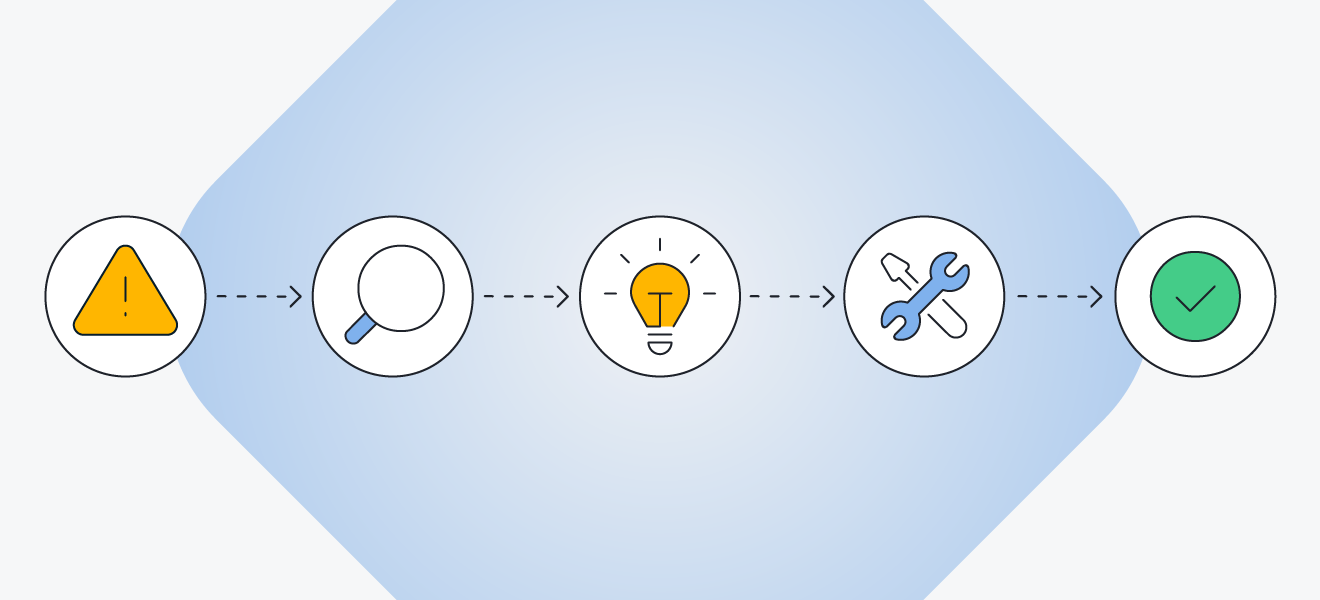 Troubleshooting begins with a deep investigation into the root cause, before a fix can be implemented.
The problems that users initially report are often just the tip of the iceberg: “I can’t log into my account — it says my password is wrong.”
But beneath the surface, a chain of invisible issues may be at play. For example, the user’s credentials are actually valid, but the device can’t reach the authentication server due to network issues.
Upon closer inspection, it turns out that a misconfigured internal DNS setting is blocking the client from resolving the authentication server’s IP. The login didn’t fail because the password was wrong, but because the login process never truly began.
What are some examples of troubleshooting?
Troubleshooting is an essential skill for anyone managing or using digital devices. But keep in mind it’s a trial-and-error process, so patience and persistence go a long way. Here are some common technical hiccups and how to fix them fast:
The frozen computer
Start by pressing Ctrl + Alt + Delete (or Command + Option + Esc on a Mac) to force-quit unresponsive programs. If that doesn’t work, try a reboot. Regularly update all software and always resolve Windows update errors.

Tip:
Avoid frantic clicking when your
computer is frozen. Doing so can increase the load on your system, making crashes worse and harder to diagnose.
The unresponsive printer
Check if the printer is on and properly connected (including the cable or Wi-Fi connection). Then try turning it off and on again. If it’s still stuck, clear the print queue, reinstall the printer driver — this should fix common printer driver problems in Windows.
Tip:
Avoid pulling paper out aggressively, as it could damage the mechanical parts of the device.
Mysteriously disappearing Wi-Fi
Start by restarting your router and device. If the signal is still weak, move closer to the router and see if other devices are hogging bandwidth. For stubborn problems with slow or unreliable internet, update your network adapter drivers or reset the network settings.
Tip:
Keep your router in a central, elevated spot and away from walls or large metal objects to improve signal strength and reduce Wi-Fi dead zones.
Other common performance problems
Whether it’s repeated restarts or crashing apps on your PC or Mac, performance problems can be a major headache. Scan this quick list of typical issues and click on the links to find out more:
Prevention is better than a cure. Regularly cleaning out your PC can help speed it up and improve performance. An automated tool like AVG TuneUp makes it easier by handling routine maintenance for you, so your system stays slick and smooth without the hassle.
7 steps to help troubleshoot any technical problem
IT and help desk professionals rely on a mix of diagnostic tools and hands-on experience to resolve issues. While troubleshooting methods vary, a structured framework helps guide the process for both experts and everyday users.
A comprehensive troubleshooting guide typically follows seven distinct phases:
 Define the problem
Good troubleshooting starts with developing a clear picture of the problem, so approach the issue like a detective and ask focused, detailed questions:
-
What are the symptoms?
-
Where and when do symptoms occur? What exact steps lead to the issue?
-
Is the issue consistent or seemingly random?
-
Can you replicate the problem?
-
Who or what is the issue affecting? One user, multiple users, or a specific feature?
Bear in mind that even after identifying the issue, the root cause may still be hidden. Pause, observe, and resist the urge to jump into fixes too quickly.
 Gather information
Now it’s time to collect the clues. The goal is to build a clearer picture of what’s happening, when it happens, and under what conditions, so you can start narrowing down possible causes.
Look for useful information from sources like:
-
Error messages or codes: Record the exact wording and any reference numbers.
-
System logs: Check event viewers or log files for patterns or warnings.
-
Screenshots: Capture visuals of the issue to document symptoms.
-
Recent changes: Consider updates, new hardware, or configuration tweaks.
-
Hardware status: Make sure cables, peripherals, and devices are properly connected and functioning.
-
Resource usage: Monitor CPU, memory, disk, or battery drain for unusual spikes.
-
System uptime: Check how long the device has been running without a restart—some issues emerge over time.
-
Built-in diagnostic tools: Use utilities like Task Manager, Check Disk, or Activity Monitor for system insights.
-
Historical data: Review past incidents and what solutions resolved them.
These clues help you zero in on the root cause without guesswork.
Research the problem’s cause
Armed with symptoms and clues, it’s time to unmask the “why” behind the issue. Your goal is to develop a working theory that can eliminate hours of guesswork.
Use these resources to guide your investigation:
-
User manuals and official documentation: Start with the basics from the manufacturer.
-
Search engines: Use precise keywords and include full error codes, device models, and exact wording from messages. Quotation marks can help to refine your search and get more accurate results.
-
AI tools: Can quickly analyze error messages and system behavior to help identify the likely cause of technical issues, but always verify answers against trusted sources.
-
Customer support: Visit the official support site or contact the vendor directly for tailored help.
-
Forums and online communities: Platforms like Reddit, Stack Overflow, and manufacturer forums often have posts from people who’ve solved the exact issue.
-
Knowledge bases: Companies like Microsoft, Apple, and AVG offer extensive troubleshooting guides and how-to blogs on issues such as HDD failure.
-
Video tutorials: YouTube is packed with visual step-by-step instructions for common problems.
-
Learn about malware: Performance issues can be caused by potentially unwanted programs (PUPs) or malware such as spyware.
-
Security software: Use a comprehensive device performance and security solution like AVG Ultimate to optimize your system and detect and remove threats.
 Test a troubleshooting solution
Now it’s time to test the most likely solution so you can develop a plan of action. It’s “just” a trial, but don’t skip this safeguarding step; otherwise, you could end up doing more harm than good.
Before you begin, ask yourself:
-
Do I need to inform anyone before proceeding?
-
Can I test this somewhere low-risk first? Test on a secondary device if the fix involves:
-
System settings or configuration changes
-
Firmware or driver updates
-
Registry edits or terminal commands
-
Unstable or beta software
-
Is this fix reversible if it doesn’t work?
-
Have I backed up important data or settings?
-
Could this impact other users, systems, or software?
If the test fix fails, conduct more research into the problem, revise your working theory, and try another solution. Think of it like running a CPU stress test before overclocking — safety and preparation come first.
 Implement the solution
If your test fix worked, it’s time to apply the permanent solution. This step should fully resolve the issue and restore full functionality. Before rolling it out, consider the following:
-
Do I need approval or need to inform anyone?
-
Is this the most efficient and reliable long-term fix?
-
Can better tools or processes prevent this from happening again?
-
Have I documented the steps clearly?
-
Am I applying the solution consistently across all affected users or systems?
Once the fix is implemented, use it as an opportunity to fine-tune performance. Review your setup and explore expert tips to boost performance — improve speed, battery life, and long-term reliability for your computer, phone, or gaming rig.
 Analyze the results
Now take a step back and evaluate. Did your solution truly fix the issue, and what does it reveal about the root cause? This phase isn’t just confirmation, it’s about learning, improving, and preventing future disruptions.
Ask yourself these questions to help you analyze the results:
-
Is the original issue fully resolved and stable over time?
-
What underlying causes were exposed?
-
Has the fix introduced any new side effects?
-
Should I run additional checks, updates, or diagnostics to be safe?
-
Would sharing this solution help others facing similar issues?
Sometimes, solving one problem highlights another, like outdated drivers, corrupted Windows system files, or hardware limitations requiring graphics driver updates or even a RAM upgrade. Each fix is also an opportunity to reinforce system stability and keep your setup future-ready.
 Document the process and findings
Hurray, you’ve solved the problem! Now make it count by documenting what happened. Clear documentation saves time down the road, helping you and others solve similar issues faster in the future.
Include the following:
-
A summary of the problem
-
Key symptoms and how the issue was identified
-
Solutions attempted (including those that didn’t work)
-
The successful fix and any follow-up actions taken
-
Details of system, software, or hardware changes
-
Helpful links or references used during troubleshooting
Thorough documentation transforms frustrating issues into future wins, helping you build better, smarter systems. So put on your troubleshooting hat (real or metaphorical), follow the process from start to finish, and don’t cut corners.
Help optimize your devices with AVG TuneUp
With automated tools like AVG TuneUp, you can stay ahead of problems by detecting and resolving issues before they slow you down. Even something as simple as regular, scheduled cleanups can boost performance by up to 30%, speed up startup times by 79%, and free up tons of valuable space for the things you really care about.