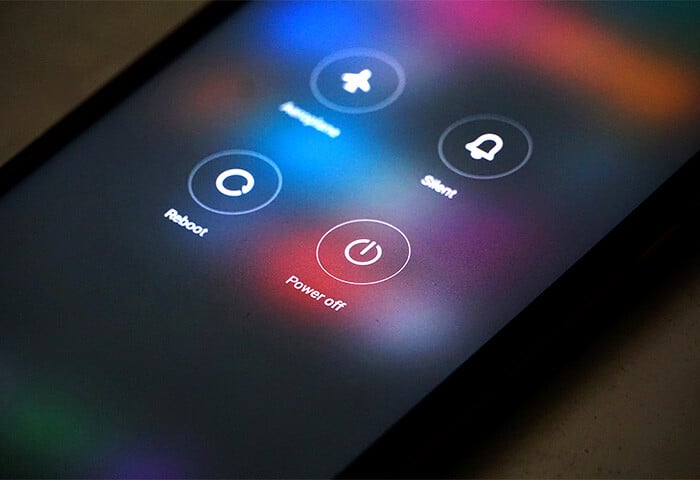
Common fixes for computer audio not working
When your sound isn’t working, you should run through a checklist, starting with the most common fixes. You should check your volume and audio settings, inspect hardware connections, restart your computer, run the troubleshooter, and update your audio drivers.
Check your volume and audio settings
If you’re experiencing audio issues, start by checking your volume and audio settings for any problems or misconfigured settings. Here’s how you can access your audio settings on Windows 10 or 11:
-
Access the Control Panel by typing Control Panel into the taskbar search box and pressing Enter.
-
Click Hardware and Sound, then click Manage audio devices to access the properties of your audio devices.
-
Look for any obvious settings that can be corrected and make the changes. Sometimes, just switching between audio outputs is enough to get the sound working on your computer.
Inspect hardware connections
Checking the physical hardware connections is a high priority for anyone experiencing no sound from their speakers. Cables can become damaged, leading to poor sound quality or no sound at all. To check cables, follow these steps:
-
Check connections: Damage often occurs at the plug, where repeated tension, bent connectors, or impacts can weaken the connection. Excessive heat from prolonged use can also contribute to wear over time.
-
Check the cables: Cables can degrade from constant pulling, contact with sharp edges, or exposure to heat sources. Inspect the entire length for fraying, kinks, or exposed wiring.
-
Check the speakers for damage: Examine the speakers for visible issues such as rusted terminals, corrosion, or physical tears in the speaker cone.
If there are no obvious signs of damage, test the speakers with a different device. If there’s still no sound, it’s a strong indication that a hardware issue is causing the problem.

Note:
If you’re using a laptop and experiencing no sound from the laptop speakers, try using headphones and checking whether audio plays when paired/plugged in.
Restart your computer
One of the most standard pieces of tech advice, restarting your PC, is well-known for a reason: it often works. Sound issues are often due to temporary driver or software glitches that are easily resolved by restarting your computer. If you haven’t tried restarting your PC yet, do so now.
Run the Windows audio troubleshooter
Windows 11 has built-in software that can identify and fix some common causes of audio problems. Issues such as muted volume, disabled sound devices, or basic driver misconfigurations can often be resolved by running the Windows audio troubleshooter.
Here’s how to use the Windows audio troubleshooter on Windows 11 to find solutions:
-
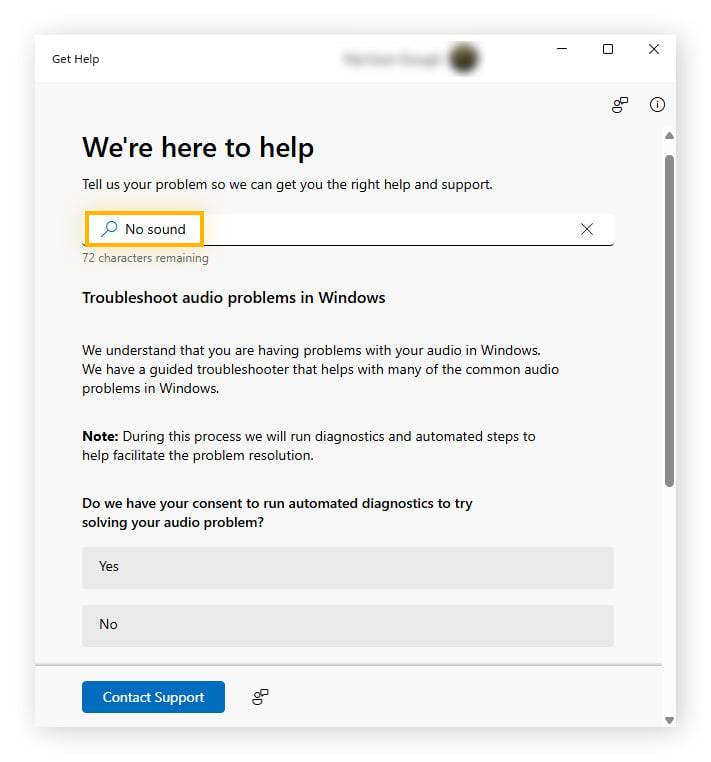
Type Get Help into the taskbar search box, then press Enter.
-
Type No sound in the search box, press Enter, and then select Troubleshoot audio problems in Windows 11.
Update your audio drivers
Keeping your audio drivers updated is important, as outdated or buggy drivers can prevent audio working properly in Windows. While Windows Update often installs new drivers automatically, this isn’t always the case, and sometimes you’ll need to update them manually or by using a dedicated driver updater.
Here’s how to update your audio drivers manually, using Device Manager:
-
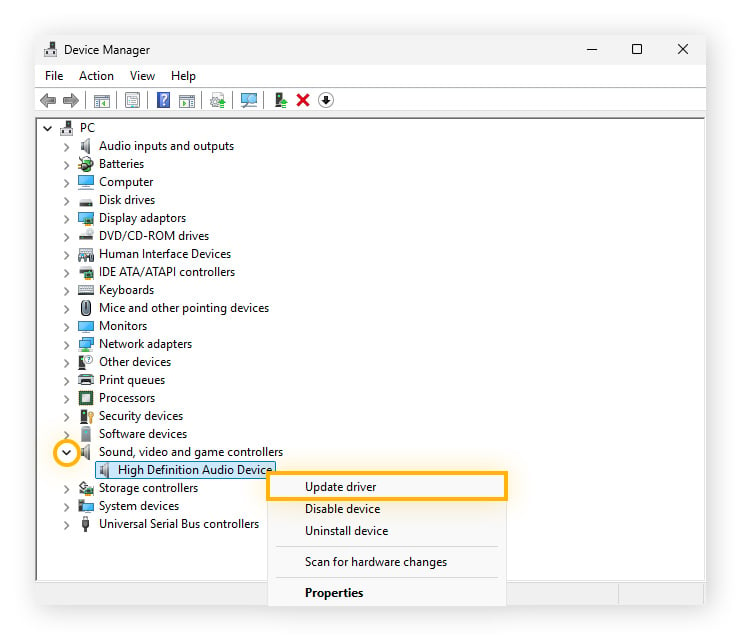
Type Device Manager into the taskbar search box, then launch it.
-
Find the audio device you want to update by expanding the Sound, video and game controllers category, right-click the device you want to update the driver for, and select Update driver to begin the process.
If Device Manager can’t find your Windows audio driver, you can download it directly from the manufacturer’s website. Keep these tips in mind when locating the correct driver:
-
Identify the manufacturer and model: You’ll need both to find the right support page and the correct driver for your device.
-
Avoid third-party download sites: Only download drivers from the manufacturer’s official website. This reduces the risk of malware and ensures compatibility with your hardware.
-
Match your operating system: Windows 11 and Windows 10 aren’t interchangeable. If a driver is available for your exact OS version, choose that one.
Manual driver updates can be tedious and time-consuming. Tools like AVG Driver Updater simplify the process by automatically keeping your drivers up to date — helping ensure better sound, video performance, and Wi-Fi connectivity without the hassle.
Advanced fixes for persistent audio problems
When sound issues on your computer or laptop go beyond quick fixes, a more advanced approach is often needed. Try restarting Windows audio services, checking your BIOS or UEFI audio settings, and rolling back or reinstalling your audio drivers.
Restart Windows audio services
The Windows audio service can sometimes experience glitches when it doesn’t recover properly from sleep mode, or when you plug in a new audio device. A restart can often get sound working again.
Here’s how to restart Windows audio services in Windows 10 or 11:
-
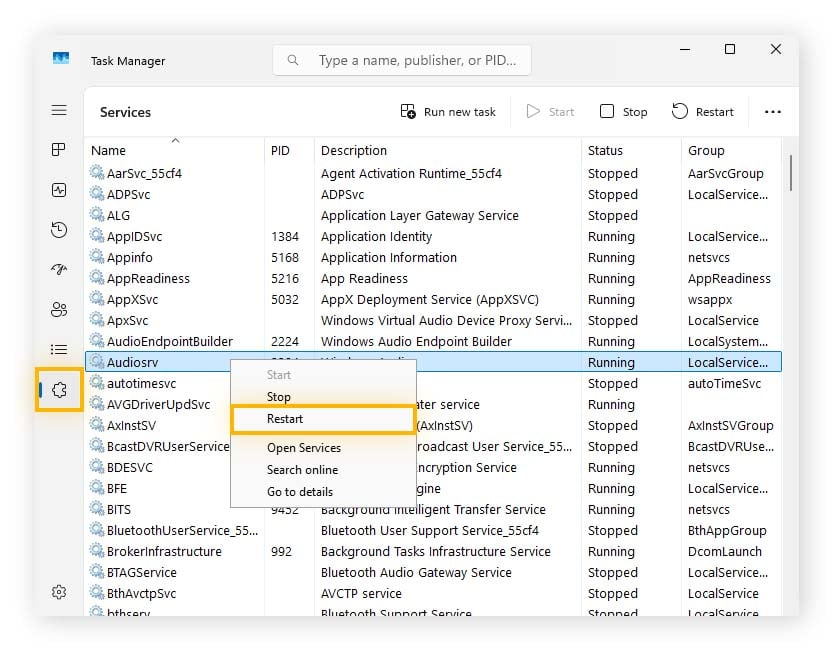
Press CTRL + ALT + ESC to open Task Manager.
-
On the left-hand side, click the jigsaw piece icon.
-
Right-click Audiosrv and then select Restart to restart the Windows audio service.
Check BIOS/UEFI audio settings
Your BIOS or UEFI includes audio settings, and how you access them varies depending on your device’s motherboard manufacturer. These settings allow you to enable or disable the onboard audio controller, as well as HDMI or DisplayPort audio output, which lets sound play through speakers or a headphone jack on a connected monitor.
To access the BIOS/UEFI to troubleshoot the issue, reboot your system and press the correct key during startup. Some common keys include F2, F12, ESC, and Del, but a brief on-screen message will usually tell you which key to press.
Once you’re in the BIOS/UEFI, look for something like Onboard devices, Integrated peripherals, or Advanced to locate the settings for the audio controller. Make sure audio is enabled. After making any changes, save and exit the BIOS/UEFI and boot back into Windows to test your sound.
Roll back or reinstall drivers
If your sound stopped working after you updated the audio driver or after a Windows update, then try rolling back your driver to the previous version.
Here’s how you can roll back audio drivers on Windows 10 and 11:
-
Type Device Manager into the taskbar search box, then press Enter.
-
Expand the Sound, video and game controllers category, then right-click the correct audio device and select Properties.
-
Select the Driver tab located toward the top, then select Roll Back Driver to roll back the audio driver.
Note:
If the Roll Back Driver option is faded out and unclickable, Windows doesn’t have the previous driver available. In that case, you may need to download an older version of the driver directly from the manufacturer’s website.
Common causes of sound issues on computers
There are three main categories of problem that can cause sound not to work on your computer: hardware-related problems, software and driver issues, and misconfigured audio settings.
Here’s how to troubleshoot each one:
Hardware-related problems
If your PC or laptop speakers aren’t working, the issue may be physical. Try the following steps:
-
Use a different device: Switch your audio output. If you’re using speakers, try headphones, or vice versa. If sound works with the alternative device, the issue is likely with the original hardware.
-
Look for damage: Inspect cables and speakers for exposed wiring, bent connectors, heat or water damage, corrosion, or tears in the speaker cone.
-
Test an external USB sound card: Plug a USB sound card into your computer, then connect your speakers or headphones to it instead of the built-in audio jack. If sound works this way, the problem is likely with the computer’s internal audio hardware or its driver.
Software and driver issues
Functional drivers are essential for operating systems to communicate with hardware, and audio drivers are no exception. Outdated, missing, or buggy drivers can easily cause sound problems, which is why keeping them up to date is so important.
Typical scenarios where software or driver issues may cause sound to stop working in Windows include:
-
A missed update: If you plug in headphones and don’t hear the usual connection sound — or Windows doesn’t recognize a new audio device — it may be a driver issue. Try updating both Windows and your audio drivers.
-
A recent update: If sound stopped working after a driver update, the new driver may be incompatible or contain a bug. Updating Windows can sometimes resolve the issue while also improving overall system security.
Misconfigured audio settings
When your computer isn’t playing sound, it may simply be the result of an incorrect setting. Always check your audio settings as part of troubleshooting.
Common examples include:
-
Muted volume: Your system or connected peripherals (such as headphones or speakers) may be muted, which will prevent sound from playing.
-
Incorrect output device selected: Windows may be sending audio to the wrong device. Open your sound settings and confirm the correct speakers, headphones, or monitor are set as the active output.
-
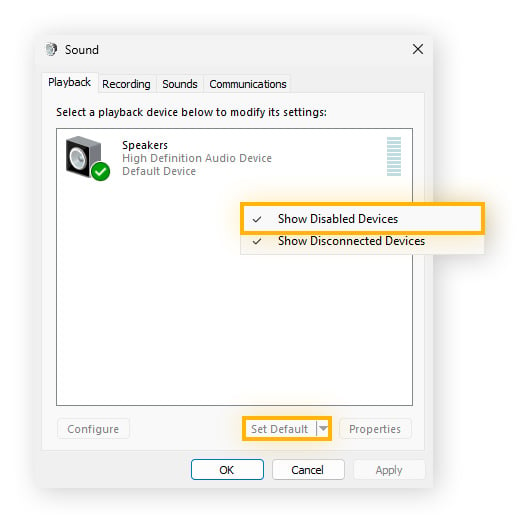
Audio device disabled: An audio device may be disabled and hidden from view. To re-enable it:
-
-
Type Control Panel into the taskbar search box and press Enter.
-
Click Hardware and Sound, then Manage audio devices.
-
In the new window, right-click an empty area and make sure Show Disabled Devices is checked.
-
Select your preferred device and click Set Default to make it the active audio output.
Preventing future sound issues
The old adage that “prevention is better than a cure” applies just as well to avoiding future audio issues. Fortunately, a few simple habits can go a long way toward ensuring sound continues to work reliably on your computer or laptop.
Maintain hardware and software health
Maintaining your audio hardware and software can help prevent problems before they start. Keep these best practices in mind:
-
Clean your speakers and headphones regularly. Removing dust and debris helps extend the lifespan of your equipment and maintain sound quality.
-
Check cables for stress points. Look for areas where cables bend, rub against surfaces, or stay under tension. Reducing strain helps prevent internal wire damage.
-
Keep liquids and heat away. Spills can short electronic components, and prolonged heat exposure can degrade hardware over time.
Regular driver updates
For Windows audio drivers, maintenance means keeping them updated to the latest stable version. Using a dedicated driver updater tool can help scan for new drivers and install them when available, keeping your sound, and overall PC performance, running smoothly.
Keep your sound driver running smoothly with AVG
Sound issues can stem from many causes, but keeping your drivers up to date helps ensure smooth audio, sharper visuals, and more reliable overall performance. AVG Driver Updater automatically scans and updates drivers from a database of over 50 million verified drivers, so you can fix issues faster and avoid future problems. Try it for free today.