What is a Secure Folder on Android?
A Secure Folder is a password-protected space to store photos, videos, files, apps, and other data separately from your phone’s main storage area. It provides additional security for sensitive files, helping protect them if someone gains access to your phone.
Secure Folder is specific to Samsung devices, but other Android phones have similar features, like Oppo’s Private Safe.
You can lock your Secure Folder in four ways: with a PIN, password, pattern, or biometrics (fingerprint or face recognition).
How to set up the Secure Folder
If you have a Samsung device, you can set up a Secure Folder using the following steps:
-
Go to Settings > Security and privacy > More security settings > Secure Folder. Then, sign in with your Samsung account.
-
Set up a lock method (a PIN, password, pattern, or biometric data).
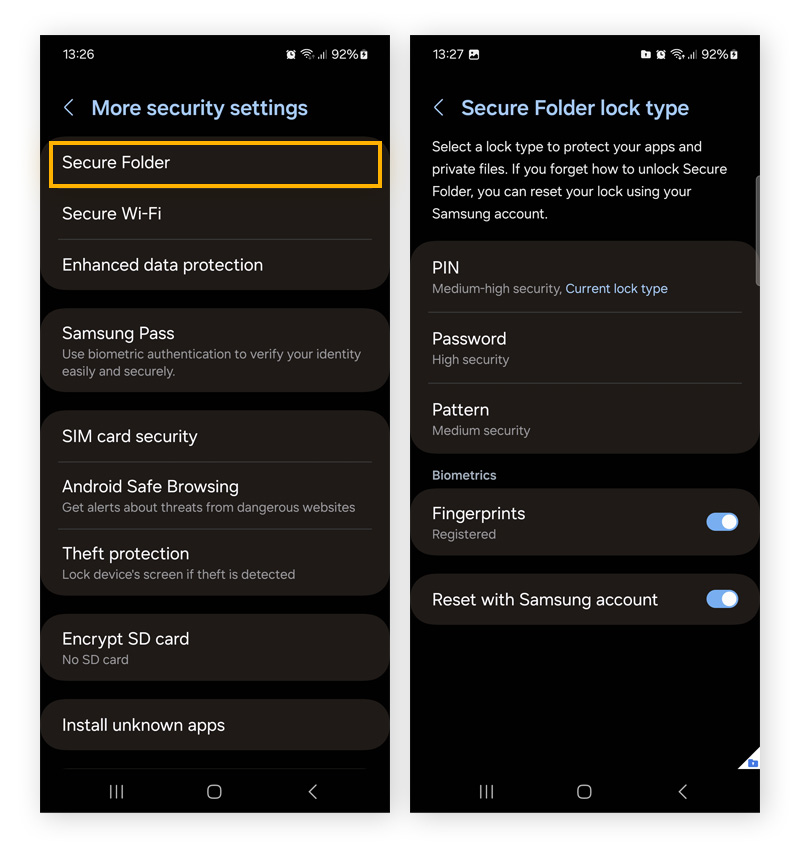
Your Secure Folder is all set up. Next, learn how to move files, photos, and apps into your newly created Secure Folder.
How to add files to the Secure Folder
You can add files to the Secure Folder using the following steps:
-
Open the Secure Folder.
-
Tap the three vertical dots, and tap Add files to import a new file.
-
Select a file you want to add, tap Done, then tap Copy or Move. Copying a file will create a duplicate in the Secure Folder, whereas moving it will remove it from the original location.
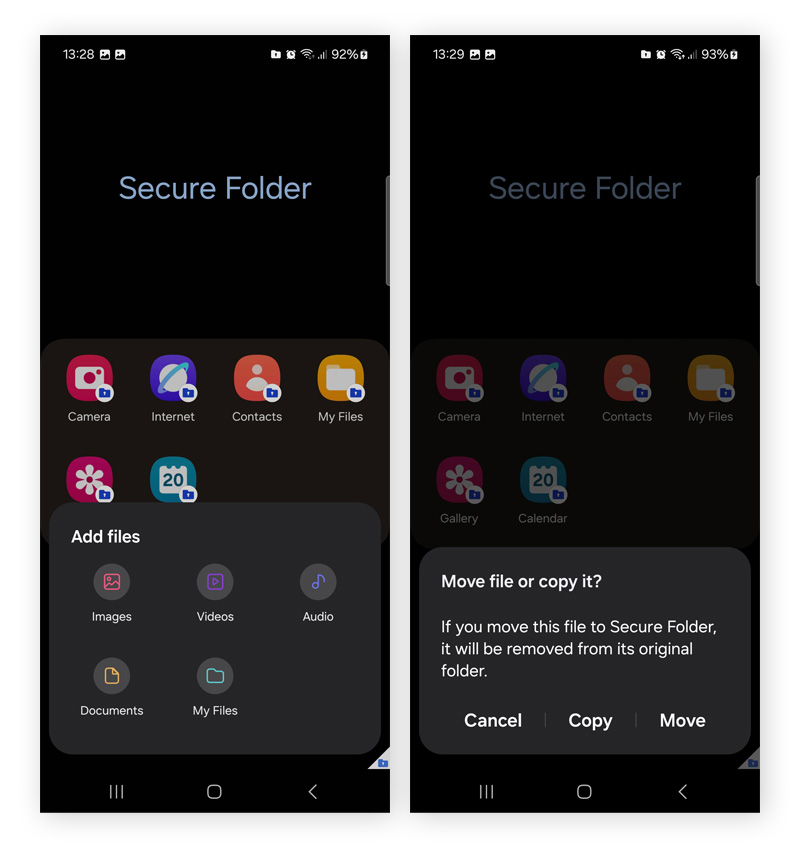
You can also move apps to the Secure Folder:
-
Open the Secure Folder and tap the plus icon.
-
Select an app and tap Add.
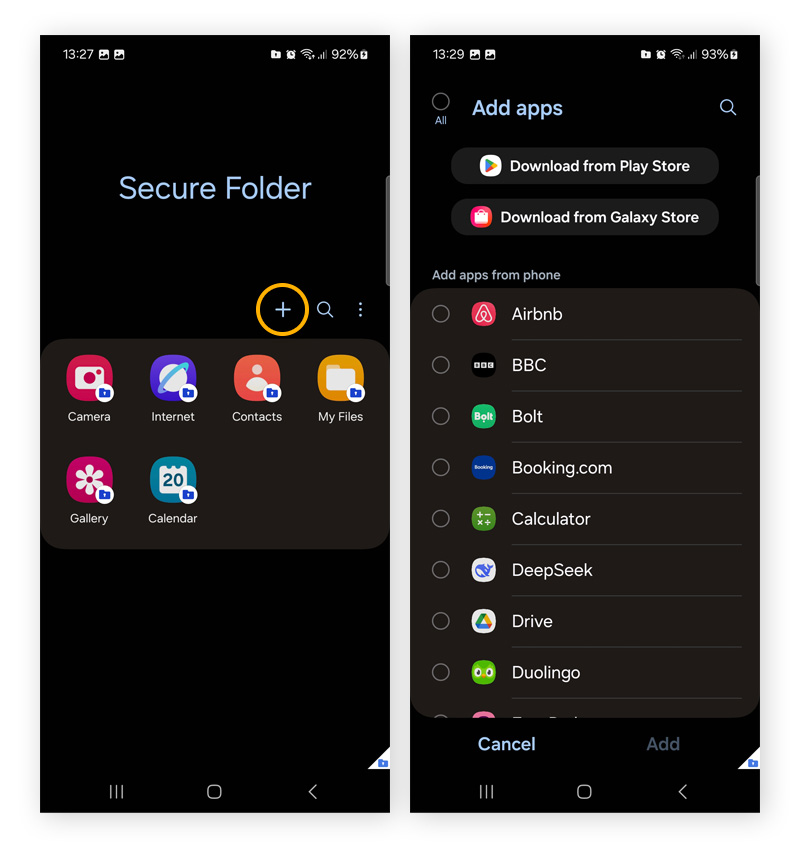
This will add a separate, encrypted copy of the app to the Secure Folder.
How to move files into the Secure Folder
It is possible to move files into your Secure Folder from other areas of your device. For example, you can move photos straight from your Gallery. Here’s how:
-
Tap the file or picture you want to move.
-
Tap the three vertical dots, and tap Move to Secure Folder.
-
Alternatively, select the file, then tap Share and select Secure Folder as the destination.
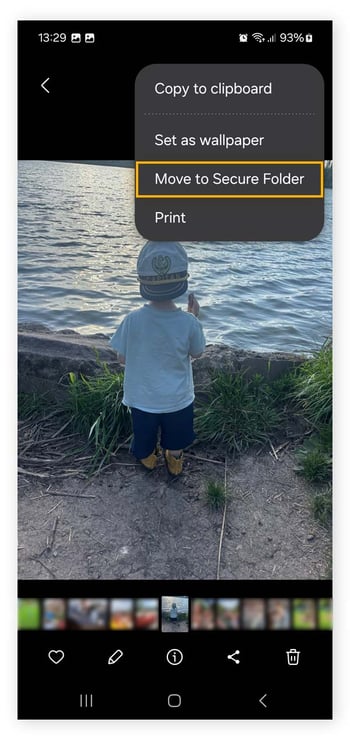
You can use the same process to select and move multiple files at the same time.
How to access your files in Secure Folder
Once you have set up your Secure Folder, the files within are protected with an extra layer of protection. You can access your files using the following steps:
-
Open the Secure Folder app.
-
Enter your PIN, password, pattern, or biometric data to unlock the Secure Folder.
-
You’ll see your apps and files inside the Secure Folder.
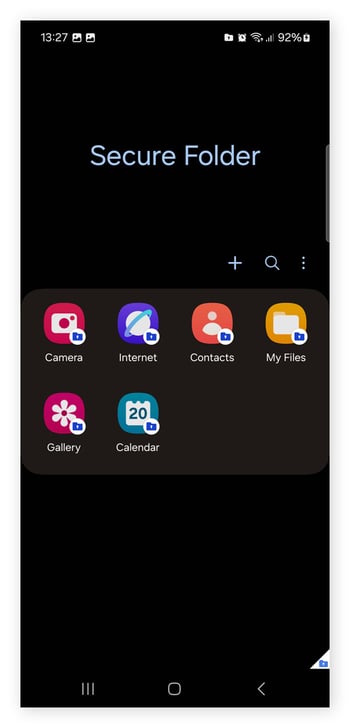
How to move files out of the Secure Folder
If you want to move a file out of the Secure Folder, follow these steps:
-
Open the Secure Folder.
-
Open the appropriate app, like Gallery or My Files.
-
Select the file you want to move, and click the three vertical dots.
-
Tap Move out of Secure Folder.
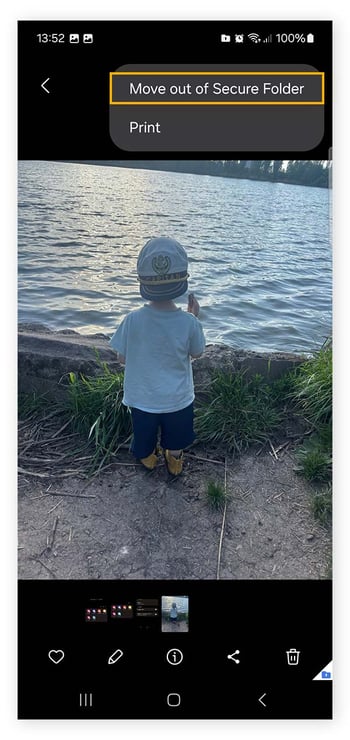
This will remove the file from the Secure Folder and return it to its original location.
How to back up Secure Folder
As of January 2021, it is no longer possible to back up data stored in the Secure Folder to the cloud. However, Samsung users can use the Smart Switch app to copy or transfer data to a new device.
Restore data to Secure Folder
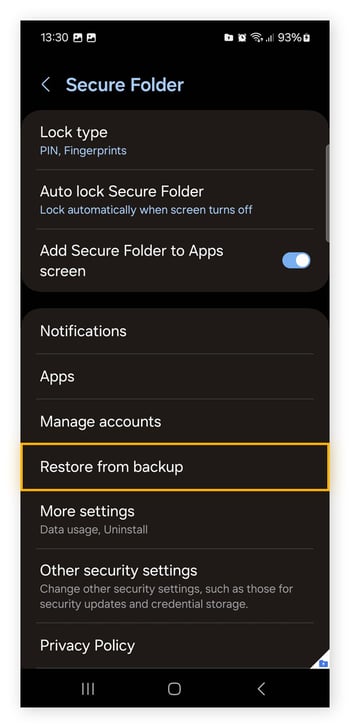
If you set up a backup of your data before 2021, you can restore it to the Secure Folder using these steps:
-
Open the Secure Folder and log in.
-
Tap the three vertical dots, and select Settings.
-
Tap Restore from backup.
-
Choose the backup file you want to recover.
Other ways to safeguard your confidential files
Use as many layers of protection as possible to keep your confidential files secure and private. Here are some additional security options you can use to safeguard sensitive files.
Hide your Secure Folder
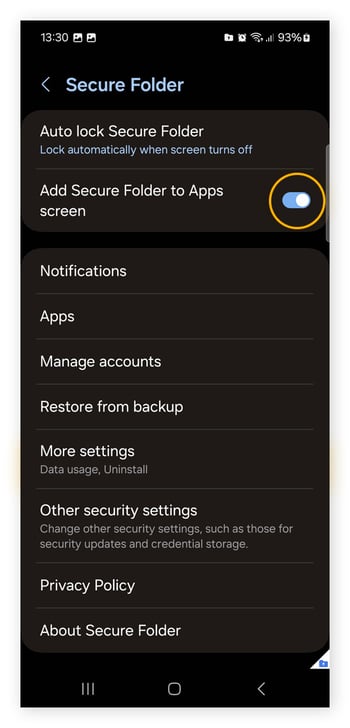
Your Secure Folder will appear on your app screen unless you take steps to hide the app. Here’s how you can hide your Secure Folder:
-
Go to Settings > Security and privacy > More security settings > open Secure Folder.
-
Toggle off Add Secure Folder to Apps screen.
Use biometric security
To maximize your security, use biometric data, like fingerprint or face recognition, to protect your Secure Folder. This is safer than using a PIN or password.
To do this:
-
Go to Settings > search for Secure Folder > select Lock type.
-
Enter your PIN or password, and toggle on Biometrics.
Implement 2FA
Two-factor authentication, or 2FA, requires two different forms of verification, such as a password and a one-time SMS code, to access an account. This adds an extra layer of protection against hackers if your login credentials are leaked.
Install antivirus
Android Antivirus software is one of the best ways to protect your device against malware and viruses, adding an extra layer of security to help safeguard your personal data. Antivirus software can check your files for malware and keep your internet connection more secure.
Get even more privacy with AVG Secure VPN
A Samsung Secure Folder will keep your most confidential files tucked away safely, but it’s just one part of a comprehensive privacy strategy. To help keep your browsing anonymous, add an extra layer of security with a powerful VPN. Install AVG Secure VPN to help keep the data you send and receive online safe and secure with bank-grade encryption.
FAQs
Why isn’t my Secure Folder working?
The Secure Folder can disappear if it has been disabled. You may need to reinstall the app via the Galaxy Store or re-enable it via Settings > Apps. Or, if your Samsung device has low memory storage, this might prevent the Secure Folder from working properly. Clearing your cache can help with this problem.
Can I view images in my Secure Folder without unlocking my device?
No. To view images in the Secure Folder, you will first need to access the Secure Folder using your chosen login method. If you move pictures to the Secure Folder, they will no longer be visible in your regular camera roll, so it isn’t possible to view them without unlocking your device.
How can I reset my Secure Folder password?
You can reset your Secure Folder password by tapping Forgot password? when you open the Secure Folder. This will prompt you to sign in to your Samsung Account and reset your password or PIN. If you cannot sign in to your Samsung Account, you will have to remove and reinstall the Secure Folder, which will permanently delete all the files, apps, and data within.
How do I uninstall my Secure Folder?
To uninstall the Secure Folder on your Samsung device, go to Settings > Secure Folder > More settings > tap Uninstall. Remember to remove any important files from the Secure Folder beforehand — otherwise, all the data will be permanently deleted.