How to create a personal hotspot
Setting up a personal hotspot on your iPhone is quick and easy. You’ll find the option to enable it in the Settings app, where you can turn the hotspot on or off, create a network password, and control what devices can connect.
Here’s a step-by-step guide to creating a personal hotspot on your iPhone:
-
Open Settings and tap Personal Hotspot.
-
Toggle on Allow Others to Join to enable the hotspot.
-
Share the Wi-Fi password shown on the settings screen with anyone who wants to connect their device.
-
You’ll know other devices are connected when a green bar appears at the top of the iPhone screen.
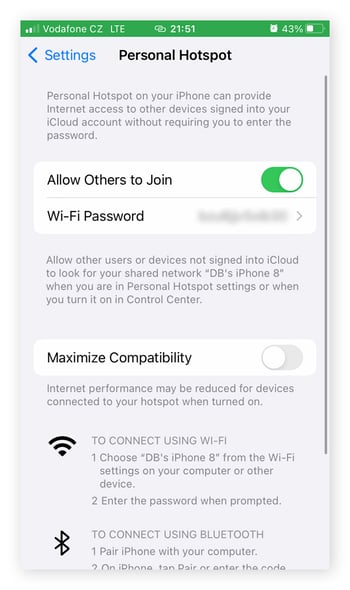
If you want to change your hotspot password, tap Wi-Fi Password. The new password you choose must contain at least eight characters, though experts generally recommend using at least 15 characters in any password. Keep in mind that changing the password will disconnect any devices that are using your hotspot.
Before using your iPhone’s personal hotspot feature, make sure that your data plan supports tethering. You can check your data plan description for terms like "hotspot data," "tethering," or "mobile hotspot" — if any restrictions are mentioned, you likely don’t have hotspot coverage included, and using your hotspot may incur extra charges.
Remember, devices connected to your hotspot are using your data. So, even if your plan does allow for personal hotspot usage, you may want to monitor how much you use it to ensure you don’t exceed your data limit. You can do this by going to Settings > Cellular.
How to connect to an iPhone hotspot
You can connect to an iPhone hotspot in three different ways: via Wi-Fi, Bluetooth, or USB. You’ll know that your device is connected when a Wi-Fi icon appears at the top of your screen and the hotspot network name appears in your Wi-Fi settings. You can also check the number of devices connected to your hotspot in the Personal Hotspot page.
Using Wi-Fi
For just about any device, Wi-Fi is the most straightforward way to connect to a personal hotspot. Here’s how to connect to a nearby iPhone hotspot using Wi-Fi:
-
Find the personal hotspot network in your Wi-Fi settings on the device you want to connect.
-
Enter the password and wait for your device to connect.
Using Bluetooth
You can also use Bluetooth to connect to a nearby iPhone personal hotspot and access the internet. Here's how to do it:
-
Enable Bluetooth and find the iPhone you want to tether to in the Bluetooth settings.
-
Tap Pair or enter the code displayed on the device you’re connecting with when the window appears on the iPhone hosting the hotspot.
Using a USB cable
If you prefer a wired connection and have a cable handy, you can also connect your device to an iPhone hotspot with a Lightning, Thunderbolt, or USB-C cable. Follow these steps to connect your device to the iPhone hotspot.
-
Use a suitable USB cable to link your device to the iPhone hosting the hotspot.
-
Open the Settings app on your device, go to the Wi-Fi page, and select the iPhone hotspot from the list of available networks.
Note that if the host iPhone doesn’t appear among the list of network connections, you may need to set it up as a network first.
How to share a connection with your family
If you’re on a family plan and want to ensure that the whole family can easily connect to your hotspot, you can set up Family Sharing. This setting can get approved family members connected automatically, without having to enter a password, whenever the hotspot is activated.
Here’s how to set up Family Sharing on an iPhone:
-
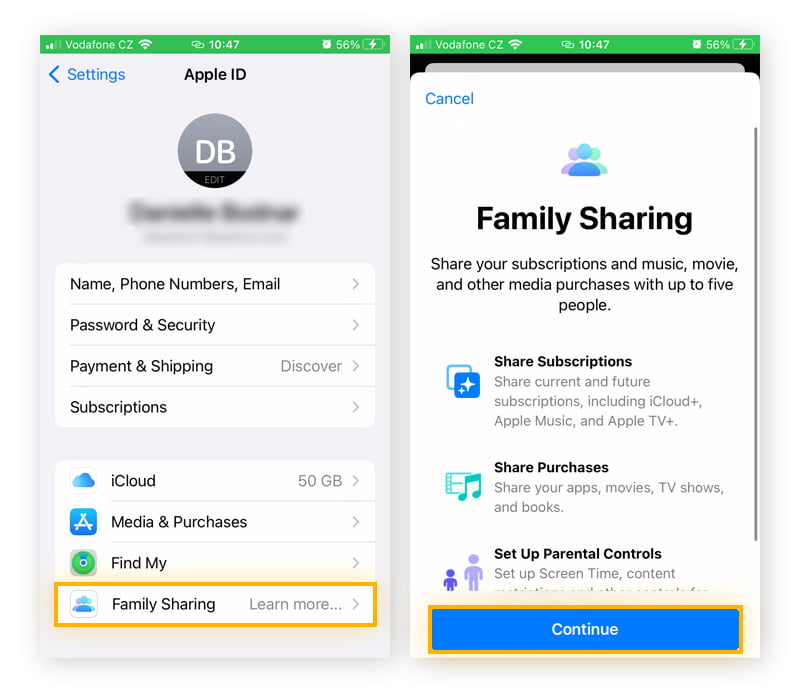
Go to Settings > Apple ID > Family Sharing. Tap Continue.
-
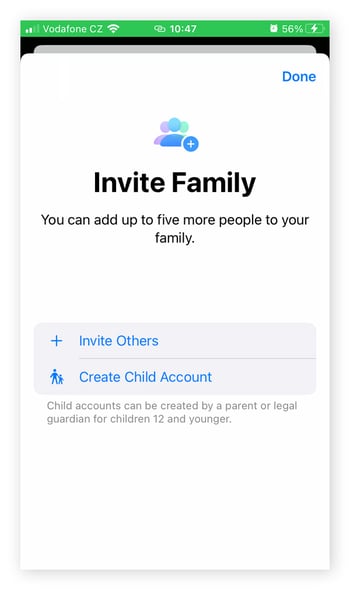
On the Invite Family screen, tap the Invite others option and select a method to send invites, choosing from a text message, email, via AirDrop, or in person.
-
If selecting to invite in person, have the family member enter their Apple ID and password to join.
-
To create a child account, select Create Child Account on the Invite Family page, enter a name and birthdate, and proceed to the verification page.
You can always revisit this section of the Settings app to monitor who is connected to the Wi-Fi on your hotspot, and modify Family Sharing settings as needed.
How to set up and use Instant Hotspot
The Instant Hotspot feature allows you to connect your other Apple devices to your iPhone hotspot without a password, even when you haven’t turned the hotspot on manually. Unlike a standard hotspot, this only works with other Apple devices that are signed in to the same Apple ID as the hotspot device.
Here’s how you can connect to an Instant Hotspot on your other Apple devices:
On a Mac:
-
In the Control Center or menu bar, click Wi-Fi.
-
In the list of networks, select the name of the device hosting the personal hotspot.
On an iPhone or iPad:
-
Go to Settings > Wi-Fi.
-
Tap the name of the iPhone or iPad hosting the personal hotspot.
Browse more safely online with AVG
Connecting to the internet via a personal hotspot is a safer way to browse when you’re away from your home network, as cellular data networks are often more secure than public Wi-Fi. But personal hotspot usage can drain your mobile data, which you may want to save for something else.
To browse the internet more safely, even on public Wi-Fi networks, use AVG Secure VPN. It helps disguise your device’s network and location, making it harder for third parties to track you. The private network also provides an added layer of protection for your personal information through encryption, making it less likely that your data can be read if intercepted by bad actors.
And what’s more, it’s free to try for 30 days! Download AVG Secure VPN and start browsing more securely today.
FAQs
How much data does a personal hotspot use?
A personal hotspot uses data from your iPhone’s cellular data plan. The amount used depends on what you do on the connected devices — streaming and downloading apps or software updates can quickly consume data, for example. But, a personal hotspot is typically safer than public Wi-Fi, so worth using when you’re out and about, unless you have a VPN.
How do I change my hotspot password?
You can change your iPhone mobile hotspot password in Settings. Go to Cellular > Personal Hotspot > Wi-Fi Password. Tap the Password field, enter a new password (at least 8 characters), and tap Done to save it.
Why is my iPhone hotspot not working?
If the internet connection isn’t working on a device using your iPhone hotspot, it might be because your iPhone has poor cellular signal, the hotspot settings are unoptimized, or your data plan is too limited. You can try restarting your iPhone, changing your network settings, or contacting your carrier to ensure tethering is allowed on your plan.
How do I disconnect my devices?
To disconnect devices from your iPhone mobile hotspot, go to Settings > Personal Hotspot, and toggle off Allow Others to Join. You can also change the Wi-Fi password or turn off Wi-Fi/Bluetooth to disconnect all users from your device.













/What_is_a_proxy_server-Thumb.jpg)