What is upload speed and why does it matter?
Upload speed is the rate at which your device can send data over the internet, typically in megabits per second (Mbps). This differs from download speed, which measures the opposite: how quickly your device receives data from the internet.
Many residential internet plans offer much faster download speeds than upload speeds because everyday activities (like browsing and streaming) involve receiving more data than they send. However, faster upload speeds become especially important when sending large files or communicating in real time, including:
But for activities such as online gaming and video conferencing, overall latency matters too. Commonly measured as ping, latency is the measurement of how long it takes for data to travel from your device to a server and back again.
So, when choosing an internet plan, compare upload speeds alongside download speeds and latency — particularly if you work from home, regularly upload large files, or livestream.
If your upload speeds are falling short, read on to learn how to diagnose the cause and improve your connection.
Common causes of slow upload speeds
Slow upload speeds can have several causes, from Wi-Fi congestion and outdated hardware to background apps or problems with your internet service. Identifying what’s slowing your connection is the first step toward fixing it. Here are some of the most common causes of slow upload speeds:
ISP limitations
There’s a good chance you're simply hitting the upper limit of your internet plan’s upload speeds, especially since many internet service providers (ISPs) offer significantly faster download speeds than upload speeds. So, first check your plan’s advertised upload speed to understand what your connection should be capable of.
If repeated speed tests show upload speeds well below what you normally receive or the minimum speed your provider guarantees, there may be a problem with your internet connection or the ISP itself. Contact your provider to check for outages, line faults, or other service issues.
Network congestion
Every device on your home network shares the available upload bandwidth. If several people are making video calls, backing up photos, uploading large files, or livestreaming at the same time, they’ll experience reduced bandwidth capacity and slow each other down.
Congestion can also occur outside your home. Depending on your internet connection, heavy demand on shared ISP infrastructure during peak hours can reduce performance. And you may even experience deliberate ISP throttling as your provider attempts to manage network demand or enforce usage policies during periods of heavy traffic.
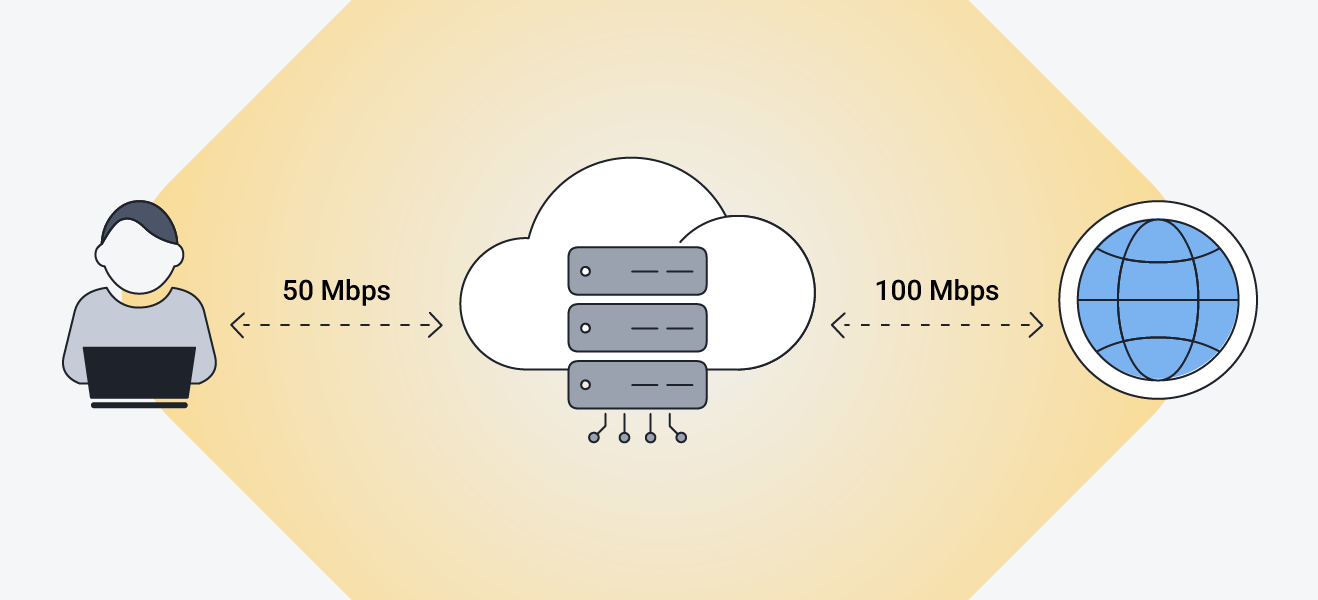 ISPs sometimes deliberately throttle internet speeds to manage network congestion.
To determine whether heavy household internet usage or other forms of network congestion are the problem, pay attention to when slowdowns occur and what others are doing online at the time. For example, try limiting bandwidth-heavy activities like streaming or gaming during an important video call to see if performance improves.
Hardware limitations
Older routers, modems, and Wi-Fi standards can prevent you from getting the full upload speed your internet connection supports. For instance, current-generation Wi-Fi 6 routers are about twice as fast as the previous-generation Wi-Fi 5 routers used around 2020.
Weak Wi-Fi signals and wireless interference can reduce performance further, so place your router in a central, elevated, and unobstructed location in your home. Keep it away from thick walls, large objects, and electronics that can interfere with Wi-Fi signals such as baby monitors or Bluetooth speakers operating at 2.4 GHz. If coverage is poor in parts of your home, a mesh Wi-Fi system or other suitable networking equipment may help.
For activities where a stable connection matters more, such as an important video call or large file upload, connecting your device directly to the router with an Ethernet cable can also help rule out Wi-Fi as the cause.
Background apps and malware
Your device may use upload bandwidth even when you aren’t actively sending anything. Cloud backups, file-syncing services, system processes, and other background apps can upload data automatically, leaving less bandwidth for video calls, gaming, and other tasks.
Check your device’s network or data-usage settings for apps using unusually large amounts of bandwidth. Close unnecessary programs, pause nonessential uploads, and investigate activity you don’t recognize.
If heavy traffic remains unexplained, scan your device with a reputable malware removal tool, since some types of malware can generate significant background network traffic.
VPN usage
Using a VPN is a great way to boost your online privacy, but it can reduce upload speeds because your traffic needs to be encrypted and then routed through a VPN server before being forwarded to its destination.
The slowdown caused by these extra steps is usually minimal, but can vary based on factors such as the VPN protocol being used, server distance and load, and the quality of the VPN provider.
To see whether your VPN is affecting upload speeds, run speed tests with the VPN connected and disconnected. If there’s a significant difference, try connecting to a closer or less congested server or switching to a faster VPN protocol such as WireGuard before turning off the VPN entirely.
How to fix slow upload speed
Fixing slow internet speeds, particularly upload speeds, may be as simple as restarting your router or stopping a bandwidth-heavy background process. If that doesn't work, you can narrow down the cause by testing your connection, optimizing your Wi-Fi setup, checking your device, and ruling out problems with your VPN or internet service.
 Quick fixes to try first
Start with these simple troubleshooting steps:
-
Restart your modem and router: Unplug your networking equipment, wait about 30 seconds, and reconnect it. A restart can resolve temporary connection or hardware issues.
-
Test your upload speed: Run a speed test and compare the result with the upload speed included in your internet plan. If possible, test over Ethernet as well as Wi-Fi to determine whether your wireless connection is contributing to the slowdown.
-
Reduce network activity: Pause cloud backups, file uploads, video streams, and other bandwidth-heavy tasks. You can also disconnect devices you aren't currently using.
-
Test again: Re-run the speed test under the same conditions. If your upload speed doesn’t improve, it’s time to consider some deeper diagnostics.
 Optimize your network and hardware
Start with your router placement: position it centrally, out in the open, and preferably above floor level. Thick walls, large furniture, and interference from other electronics can weaken Wi-Fi signals and reduce performance. If it’s practical, try connecting your device directly to the router with an Ethernet cable, since a wired connection can provide greater stability.
If your wireless upload speeds still fall short, consider upgrading your hardware. An older router may not support newer standards like Wi-Fi 6, which can improve network capacity, efficiency, and performance on compatible devices.
 Update system software
Outdated operating systems, firmware, and network drivers can sometimes cause connection problems or reduce performance. Install available system updates and, where applicable, update your Wi-Fi or Ethernet adapter drivers.
Windows users can typically obtain network drivers through Windows Update or the device manufacturer's website.Check our comprehensive guide on how to find and update drivers, or, for an automated option on Windows, try AVG Driver Updater for free to help identify and update outdated drivers.
 Check for malware and other unwanted programs
Malware and unwanted applications can consume bandwidth by sending data or communicating with remote servers in the background. If you notice an uptick in unexplained network activity or other unusual device behavior, it’s good to run a full security scan to rule out malicious software, or remove it if it’s found. AVG AntiVirus Free can scan your device for malware and help remove detected threats for free.
Test your VPN connection
A VPN can affect upload speeds because it encrypts your traffic and routes it through an additional server. To determine whether your VPN is contributing to the slowdown, run a speed test with the VPN connected and temporarily disconnected. The results of the test should indicate whether your VPN is limiting your speeds.
If performance improves significantly without the VPN, try connecting to a geographically closer or less congested server or switching VPN protocols. AVG Secure VPN can automatically select an optimal server location for your connection.
Contact your ISP
If your upload speeds remain consistently lower than expected (especially when testing over Ethernet with other network activity paused) the issue likely lies with your internet connection or service provider.
Check for reported outages and confirm the upload speed included with your plan. If the results remain unusually low, contact your ISP. They may be able to identify line problems, equipment faults, congestion, or other service issues that you can't resolve by yourself at home.
When slow upload speeds are beyond your control
Sometimes, a slow upload speed doesn’t mean there’s anything wrong with your device, router, or internet connection. Your service may be working exactly as intended but still be limited by factors outside your control. Here are a few examples:
-
Network infrastructure: Cable, DSL, fiber, satellite, and other broadband technologies offer different upload capabilities. Fiber connections typically provide much higher upload speeds than older technologies.
-
Shared network capacity: Depending on your connection, you may share infrastructure with other customers in your area. Heavy local demand can reduce the bandwidth available during busy periods.
-
Asymmetric internet plans: Many residential plans are designed to provide significantly faster downloads than uploads, placing a built-in ceiling on your upload performance.
If your connection is performing within your ISP’s expected range but the upload speed still isn’t sufficient, troubleshooting won’t make it substantially faster. You may need a plan with higher upload speeds or, where available, a faster connection technology such as fiber.
Keep your devices running at their best with AVG
Slow speeds can get in the way of work, streaming, and everything in between. AVG TuneUp helps clean up clutter, optimize settings, and keep your software in better shape so your devices can run more smoothly. With fewer unnecessary background issues holding things back, you can get more from your internet speed and your device’s performance.







/How-to-speed-up-your-iPhone-Thumb.jpg)