How to delete your Instagram account on iPhone or Android
To delete Instagram using your phone app, sign into your account in your Instagram phone app, find the account ownership and control section in the settings menu, and select deactivation or deletion.
Before deleting your account, consider downloading a copy of your Instagram data, like photos and posts, since you won’t be able to access them once your account is gone.
Here’s how to permanently delete your Instagram account from the phone app:
-
Open the Instagram phone app, signing in if needed. If you’ve forgotten your password, tap Forgot password and follow the instructions.
-
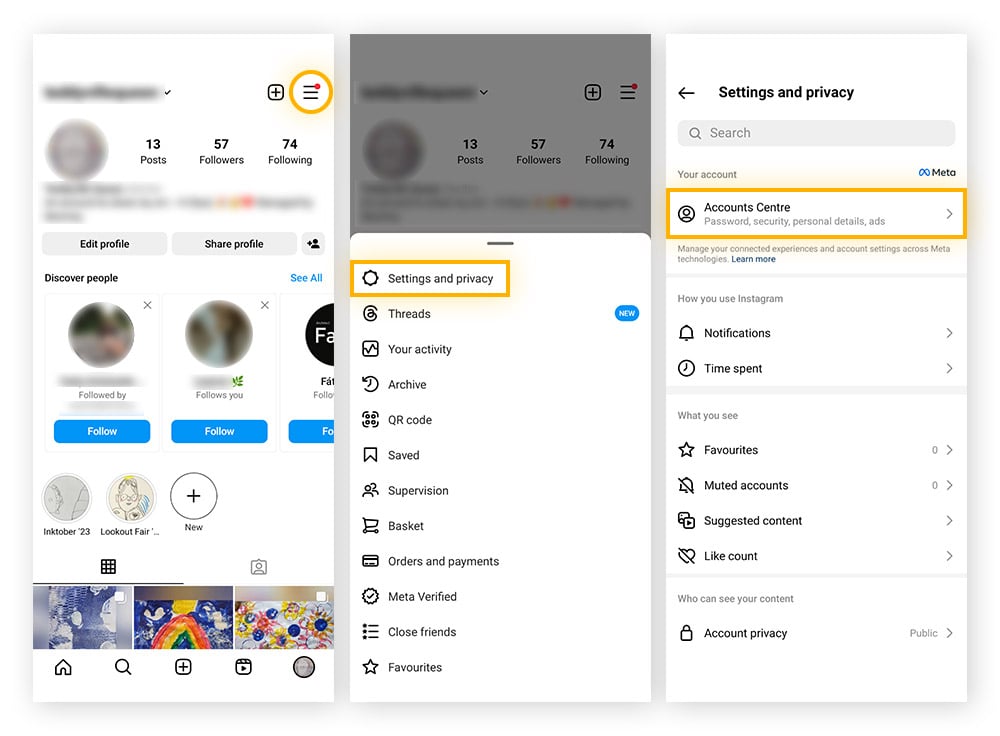
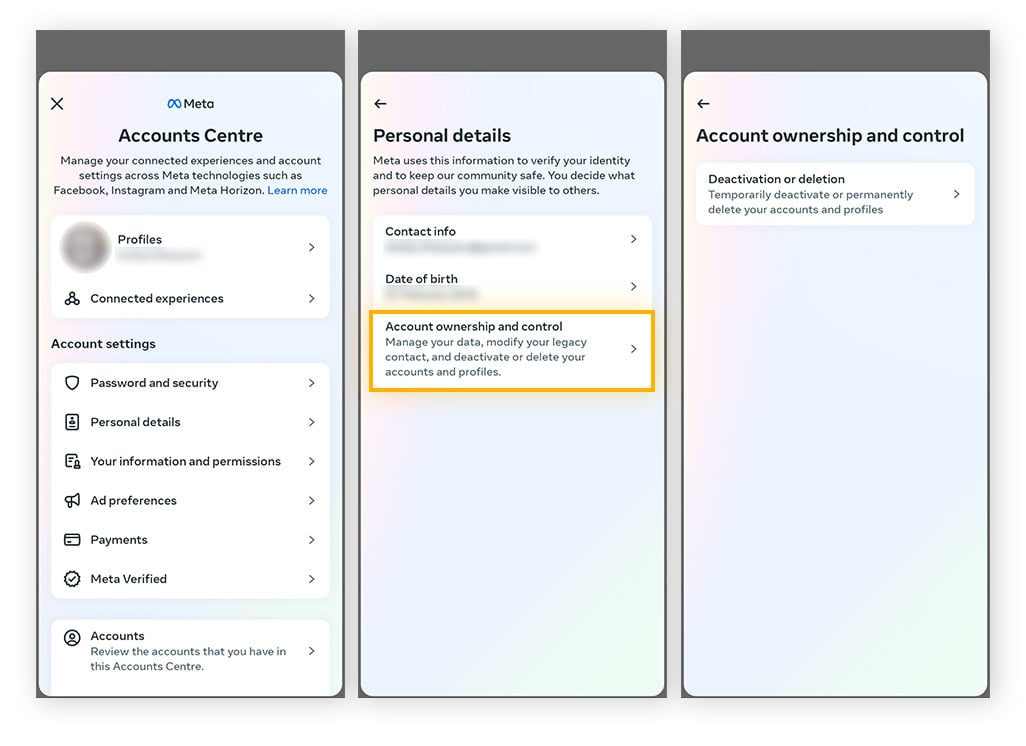
Go to Profile > Menu > Settings and privacy > Accounts Center.
-
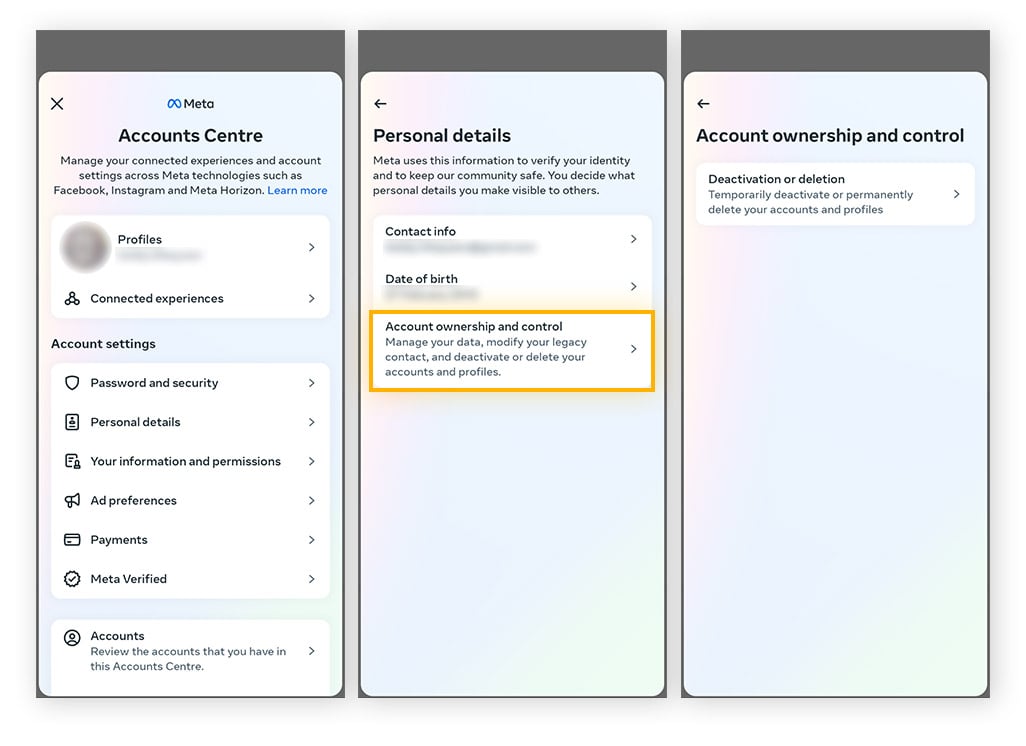
Tap Personal details > Account ownership and control > Deactivation or deletion.
-
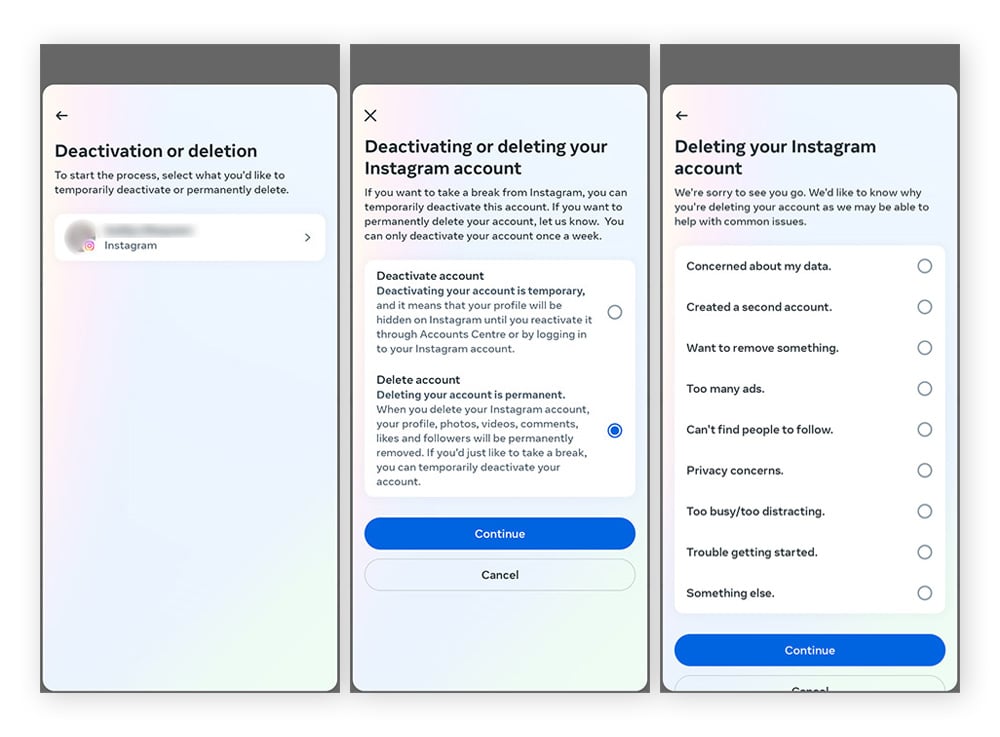
Select the account you want to delete and tap Delete account > Continue. Re-enter your account email and password, choose the reasons why you’re leaving, then tap Continue.
The Instagram menu icons and setting labels differ slightly across the iPhone and Android apps, but the steps are the same.
Choosing to delete your account means quitting Instagram permanently — your profile and all data are removed with no recovery. However, deletion isn’t instant. Once you request it, Instagram gives you 30 days to change your mind. Your account is disabled during this period and if you don’t log back in, it’s permanently deleted after 30 days.
How to deactivate Instagram via the app
To temporarily disable your Instagram account via the Android or iOS app instead, you need to log in to your Instagram app, go to Settings, Account ownership and control, Deactivation or deletion, and follow the prompts.
Here’s how to deactivate your Instagram account step-by-step:
-
Open and log in to the Instagram app. Tap Forgot password if you need to reset your login details.
-
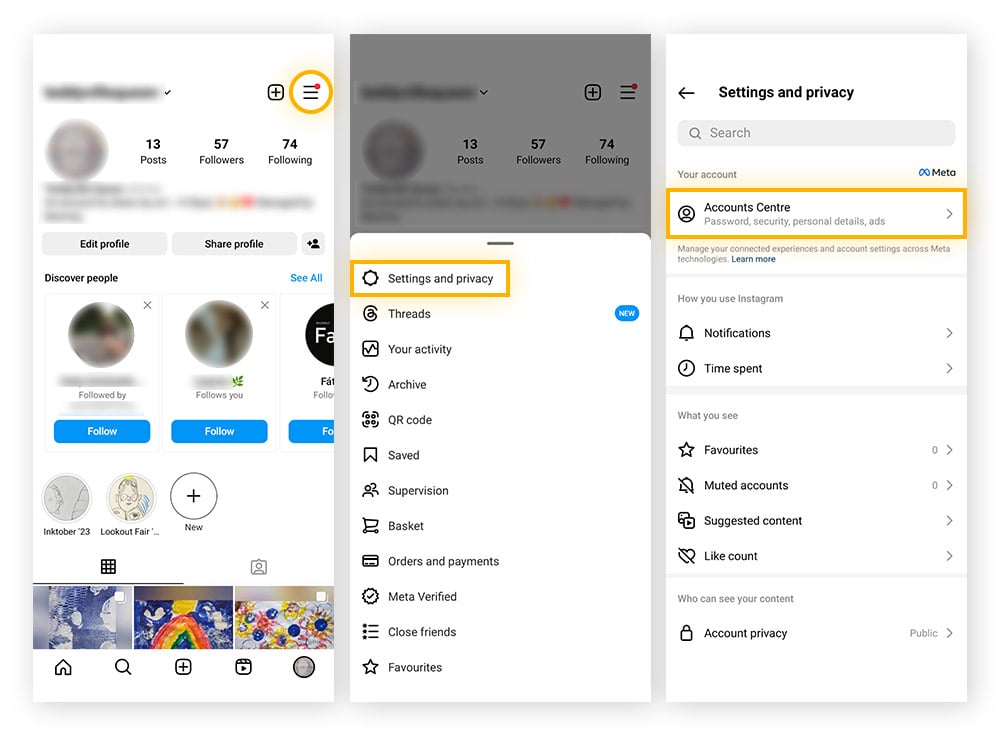
Go to Profile, choose Menu, then tap Settings and privacy and Accounts Center.
-
Tap Personal details, select Account ownership and control, then choose Deactivation or deletion.
-
Choose the account you want to disable. Tap Deactivate account and Continue. Re-enter your email and password, choose the reason why you’re deactivating, then tap Continue.
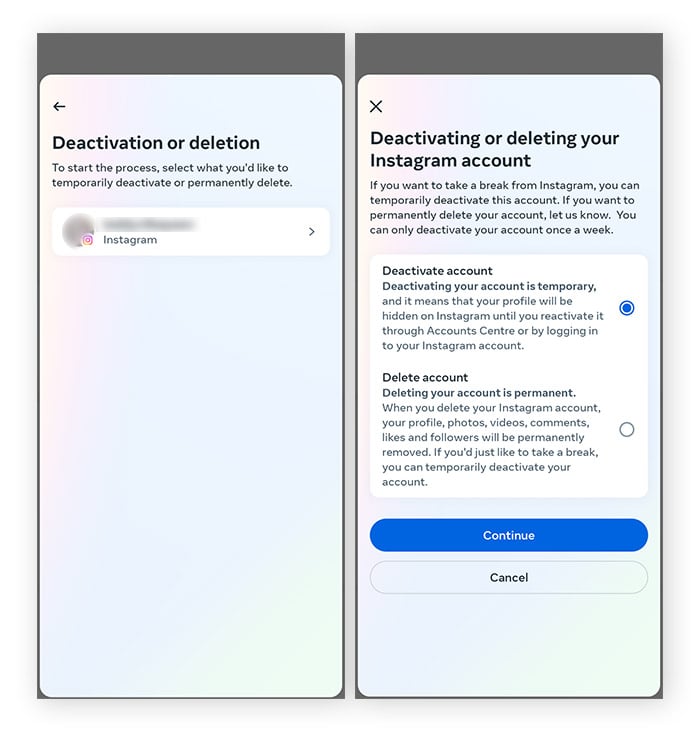
When you deactivate your Instagram account, your profile, photos, likes, and comments are hidden but not deleted. Your account won’t be visible to others, and you can reactivate it anytime simply by logging back in. Unlike deletion, nothing is permanently lost.
How to delete your Instagram account on your PC or Mac
You can delete your Instagram account on a PC or Mac by accessing the Accounts Center settings via your browser. Deleting from a computer can be easier, with a larger screen, keyboard, and no need for the app — helpful if you manage multiple accounts.
Here’s how to permanently delete your account on a computer or via a web browser:
-
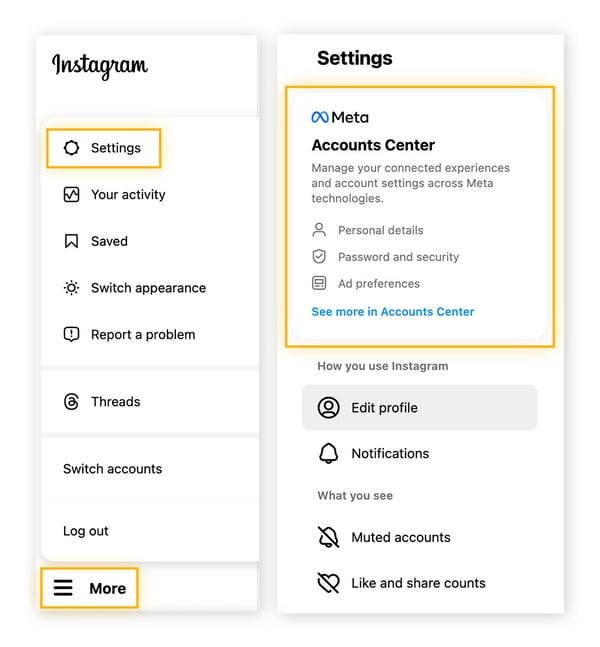
Go to https://www.instagram.com/and log into your account. Click More> Settings> Accounts Center.
-
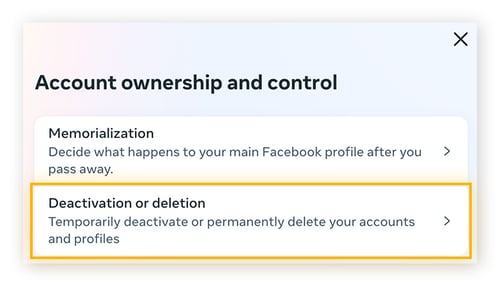
Go to Personal details, choose Account ownership and control, then tap Deactivation or deletion.
-
Select your account then select Delete account and Continue. Enter your email and password, choose a reason for leaving, then tap Continue and Delete account.
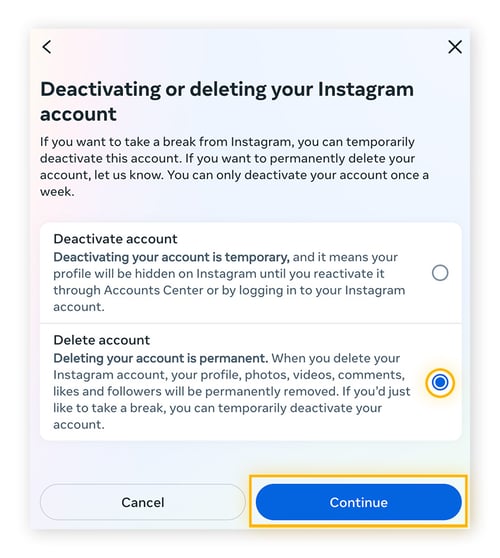
Deleting your Instagram account works the same on Windows and Mac. And the steps are identical no matter your default browser, whether that be Safari, Chrome, Edge, or a secure web browser.
How to deactivate Instagram on your computer
The steps for deactivating your Instagram on your PC or Mac are similar to account deletion — simply find the Deactivation or deletion option in the Accounts Center.
Here’s how to deactivate your Instagram account on a computer or browser:
-
Log in to your Instagram account. Go to More > Settings > Accounts Center.
-
Click Personal details > Account ownership and control > Deactivation or deletion. Then select your account.
-
Click the button next to Deactivate account > Continue.
-
Enter your email and password, choose a reason for deactivating, then click Continue > Deactivate account.
As soon as you submit the request, your profile, photos, comments, and likes are hidden. You can reactivate anytime by simply logging back in.
What gets deleted when I cancel my Instagram account?
When you permanently cancel your Instagram account, your photos, videos, and other data will be fully deleted. However, some data may remain visible to others even once your account is gone. Messages you’ve sent to friends will still appear in their inboxes, and content others shared that involved you (like group chats or tagged posts) won’t be removed.
Instagram account deletion permanently removes:
-
Your profile, photos, videos, stories, comments, likes, and followers.
-
All messages and interactions you’ve had with other users.
-
Your username may become available for others to claim.
-
Linked account connections.
You will lose access to your account after 30 days of submitting your deletion request, although it takes Instagram up to 90 days to delete your data.
Meta, the parent company of Instagram, also runs Facebook and other services. If you’re worried about the data you’ve shared across Meta accounts, you can delete or deactivate your Facebook account to reduce cross-platform linking and remove your active presence from the Meta ecosystem.
Still, Meta may retain certain data (e.g., login, payment, and security logs) for as long as necessary to provide services, comply with legal obligations, or protect legitimate interests — some data can persist for months or years, including in backups.
Likewise, deleting your Instagram account does not erase all personal data that Instagram has already passed on to third parties, like data brokers and advertisers.
Download your Instagram data
Downloading your Instagram data before deletion or deactivation means you can keep a copy of your photos, videos, stories, messages, and account activity. This lets you preserve memories, review interactions, and retain important information.
Here’s how to request a copy of your Instagram data:
-
Open the app and tap the menu option. Go to Accounts Center > Your information and permissions > Export your information > Create export.
-
Select your account then choose where to save your export. Update date range, media quality, and format, as required, then Start export.
-
You will receive a link to download your data, usually within 48 hours.
Instagram gives you two download formats for viewing your data:
Deleting vs. deactivating your Instagram account
-
Delete Instagram: Permanently removes your account, along with all photos, videos, comments, likes, and followers. Once deleted, it cannot be recovered.
-
Deactivate Instagram: Temporarily hides your account. Your profile, posts, comments, and likes are hidden from others, but nothing is lost, and you can reactivate anytime. Instagram currently only lets you deactivate once every 7 days.
Reactivate your Instagram account
To reactivate, simply log back in to Instagram via the mobile app or website, using the same email address and password you used to deactivate or submit a deletion request.
-
Deactivated accounts: Your profile, posts, comments, and likes are unhidden when you log in, and nothing is lost.
-
Deleted accounts: You must log in and reactivate within 30 days of requesting deletion to restore your account. After 30 days, your account and all data are permanently removed and reactivation is not possible.
Once reactivated, your Instagram account will appear exactly as it was before. Be cautious if you’re restoring a previously hacked Instagram account — reactivation could give the hacker access again if you haven’t secured your login with 2FA or changed to a stronger password.
Help protect your data on Instagram
If you have concerns about how Instagram uses your data, but you’re not quite ready to delete or deactivate the app, there are several steps you can take to enhance your privacy as you doom scroll and share pictures of your breakfast; for example, you can make your profile private, control who can message you, adjust ad preferences, and more.
Read on for more details, noting that steps may differ slightly depending on device type:
-
Make your profile private: Tap Profile or your profile picture > Menu. Scroll down to find the Who can see your content section, then tap Account privacy. Toggle on Private account. This will ensure only people you’ve approved as followers can see your profile and posts. You can explore other settings in this section for more privacy customization options.
-
Control who can message you: Tap Profile or your profile picture > Menu. Scroll down to find How others can interact with you and tap Messages and story replies. Tap Message requests, then choose who can send you message requests.
-
Limit who can interact with you: Tap Profile or your profile picture > Menu. Scroll down to find How others can interact with you. From here, explore ways to customize who can tag you, comment on your posts, share your content, interact with your profile, and more.
-
Archive old posts: Tap Profile or your profile picture, then tap the post you want to archive. Tap Options > Archive. Archiving a past post makes it invisible to everyone except yourself, without actually deleting it.
-
Limit who sees your social interactions alongside ads: Tap Profile or your profile picture > Menu. Select Accounts Center > Ad settings > Social Interactions > Select an account > Only me under “Who can see your social interactions alongside ads for this account.” This will prevent your friends from seeing your social interactions next to ads they see.
-
Adjust ad preferences: Residents of the EU can opt for “less personalized” ads (users based in the US do not have this option). To do it, tap Profile or your profile picture > Menu. Navigate to Accounts Center > Ad preferences > Ad settings > Ad experience > Less-personalized Ads. This will make it so that “less of your data” will be used for targeted advertising that some users may perceive as invasive.
Another way to somewhat limit what data is shared with advertisers is to go back to Ad settings > Tap Activity information from ad partners > Review setting > No, don’t make my ads more relevant by using this information. The ad settings section also allows you to adjust your audience-based advertising preferences, opt out of ads from ad partners, and change the categories used to reach you (such as your mobile network).
-
Refuse optional cookies: This is not possible within the app, but you can delete cookies by clearing the cache of your device or browser. The steps for clearing your cache on an Android or iPhone is a bit different from clearing your cache from your browser.
Browse privately with anti-tracking technology
Sometimes, it can seem that social media platforms like Instagram make adjusting your ad preferences purposefully confusing. Opting out of third-party tracking may involve many convoluted steps.
And, even if you just delete Instagram, other websites can still track your online activity to build profiles for targeted ads. For many users, an anti-tracking tool is a much easier way to regain control over their digital privacy. AVG AntiTrack removes cookies and reduces tracking, helping protect your online privacy and minimize the amount of browsing data advertisers see.