Why phones might be listening to you
Ordinarily, smartphones aren’t constantly recording your conversations or spying on you, although uncannily relevant targeted ads can create that impression. They do listen out for voice assistant wake words so they can respond, but that limited listening is designed for functionality, not surveillance.
Features like Alexa, Siri, and Google Assistant rely on these virtual “ears” to function properly, staying on standby for wake words such as “Hey Siri” or “OK Google.” This lets them set reminders, make calls, play music, or answer questions on demand.
Other apps use microphone access for specific purposes. Social platforms like Snapchat rely on it to record audio and video, while Google Maps may use it for voice search or spoken commands.
In most cases, this listening is intended to be helpful, not intrusive, but it does raise privacy questions. Your privacy ultimately depends on which apps have microphone access and how any collected data is used or shared.
Voice assistant technology
Voice assistants like Siri and Google Assistant are built to respond on demand. To do that, they need ongoing access to your phone’s microphone and must passively listen for an activation phrase (known as a wake word) so they can jump into action when needed. That might be “Hey Siri,” “OK Google,” “Hey Alexa,” or even a custom option like “Hey Buddy.”
In some cases, short snippets of voice data are used to improve recognition accuracy over time, which is where privacy concerns come in. How that data is handled varies by company, and what happens after you speak depends on the assistant you use, the settings you’ve chosen, and how the data is stored or shared behind the scenes.
For example, Google uses assistant interaction data to help personalize ads. Apple says it doesn’t use Siri to build marketing profiles and that Siri requests aren’t linked to your Apple ID. Amazon states that audio isn’t sent to its cloud unless a wake word is detected, though requests are tied to user accounts to personalize experiences such as shopping.
Third-party apps and permissions
Many apps request microphone access during setup, and in many cases, that access is perfectly legitimate: video, messaging, and calling apps need user audio input to function properly. Problems arise when apps request microphone access without a clear purpose or retain it after the feature is no longer in use. While there’s no credible evidence that major social platforms actively listen to conversations, excessive permissions can still create unease and reduce user control.
A more serious risk comes from spyware or malicious apps, which may abuse microphone access to capture audio or other sensitive data without your knowledge. These threats are far less common but highlight the importance of reviewing app permissions regularly and installing apps only from trusted sources.
Targeted advertising and data collection
The sense that phones are “listening” is more often explained by aggressive data collection and ad targeting. Advertisers build detailed profiles using browsing history, location data, app activity, and cross-device tracking rather than recorded conversations. Combined with illusory correlation — our tendency to notice things that align with recent thoughts, observations, and conversations — this can feel invasive. Even without audio surveillance, the scale of tracking raises real concerns around consent, transparency, and data use.
How to test if your phone is listening
If you suspect your smartphone may be actively listening, First run a scan with a reliable mobile security app to find and remove malicious apps that may be hijacking your phone’s mic input to listen in. If the scan comes up clean, there are a couple of other ways to investigate further, and hopefully, put your mind at ease.
 The keyword-only “conversation” test (not conclusive)
This informal experiment is often used to explore whether spoken words alone influence the ads you see, but its results should be interpreted with caution.
-
Pick a topic you’ve never searched for, bought, or messaged about—and that no one in your household has a connection to (for example, “left-handed violin lessons” or “pink alpaca socks”).
-
For two to three days, talk about the topic out loud near your phone. Don’t type it, search for it, or text about it. Also mention it when your phone is idle, and the screen is off. Keep voice-activation features like Siri or Alexa enabled.
-
Watch for related ads or personalized contenton platforms such as Google, Instagram, TikTok, YouTube, or other ad-supported apps. If anything appears, note where you saw it.
Important disclaimer: This test isn’t proof. Ads can be triggered by a myriad of other signals — location, browsing, social media behavior, your contacts’ activity, trending topics, retailer tracking pixels, and cross-device identifiers. So, while this experiment can suggest patterns, it doesn’t confirm active listening.
 The technical test: check microphone access logs
Built-in access logs and other indicators let you see exactly which apps have access to and have used your microphone, helping you distinguish normal activity from anything unexpected.
On iPhone (iOS 26):
-
Go to Settings > Privacy & Security.
-
You’ll see a list of hardware features. Tap Microphone, and review which apps have access.
-
Watch the indicator dot at the top of the screen. It turns orange when an app uses the microphone without the camera, and green when an app uses the microphone and camera together (or just the camera).
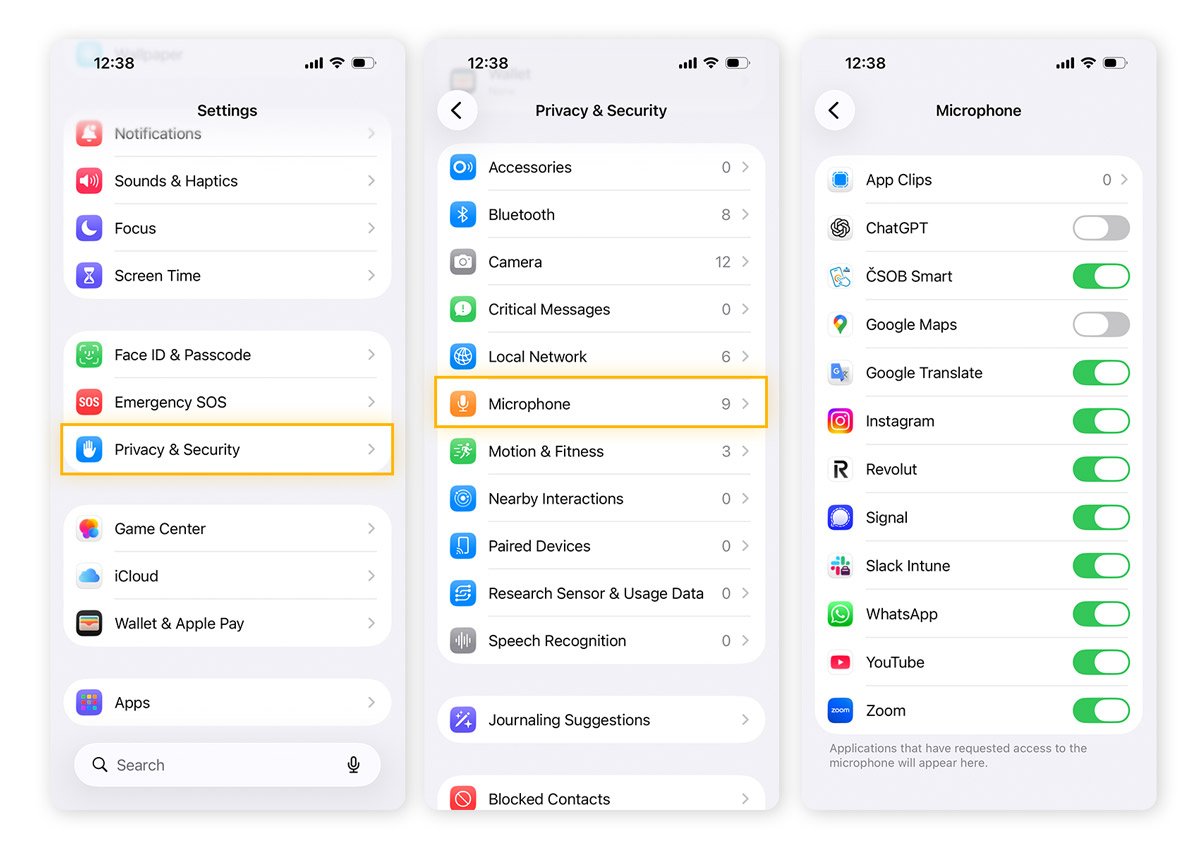
You can also turn on App Privacy Report to see details about how often apps access your data, such as your location and microphone. Go to Settings > Privacy & Security > App Privacy Report. Note that App Privacy Report will only start gathering information after you've turned it on, so it may take a bit of time for details to appear.
On Android (Google Pixel):
-
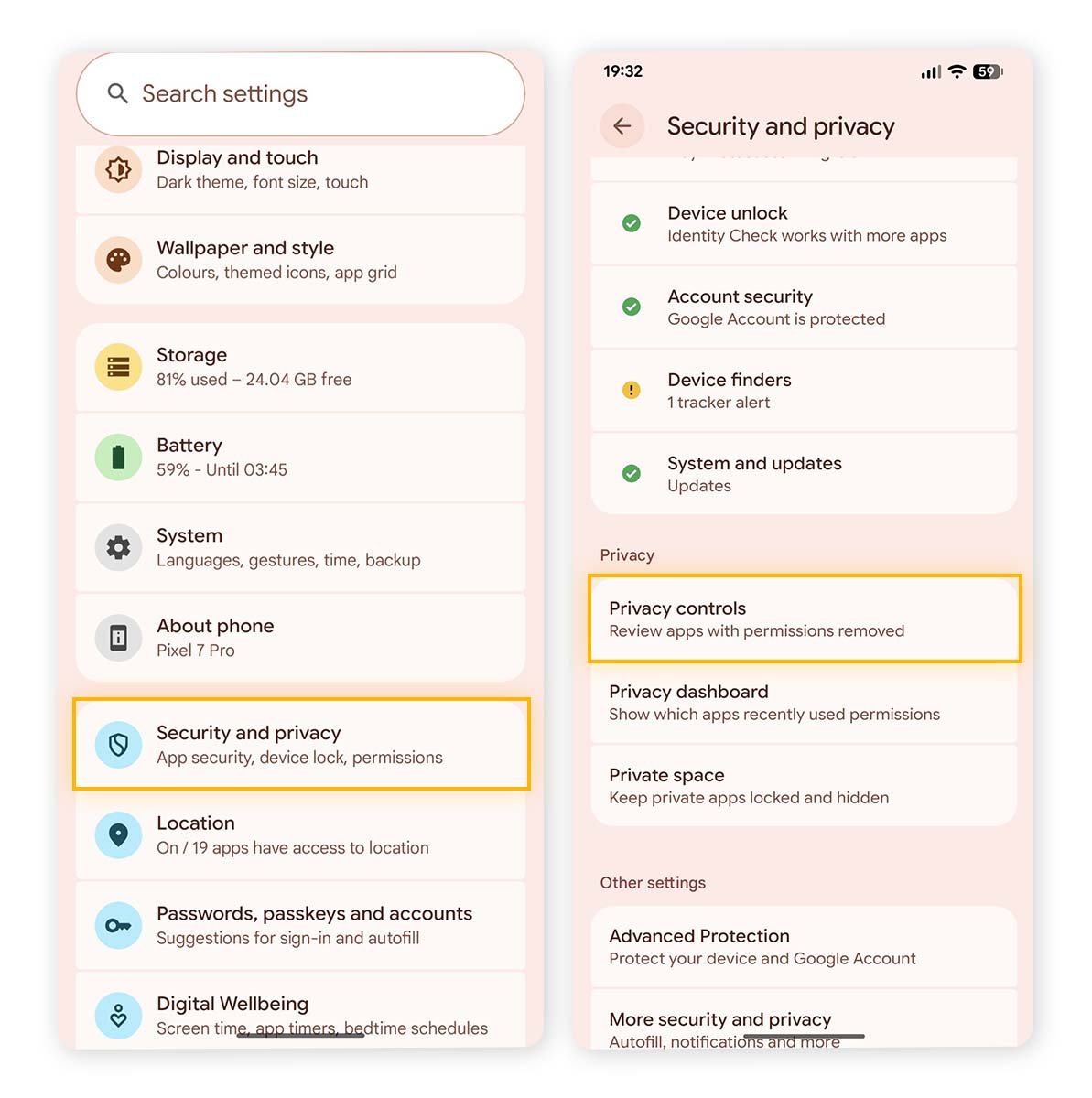
Swipe down to access Settings (gear icon) > Security & privacy > Privacy controls.
-
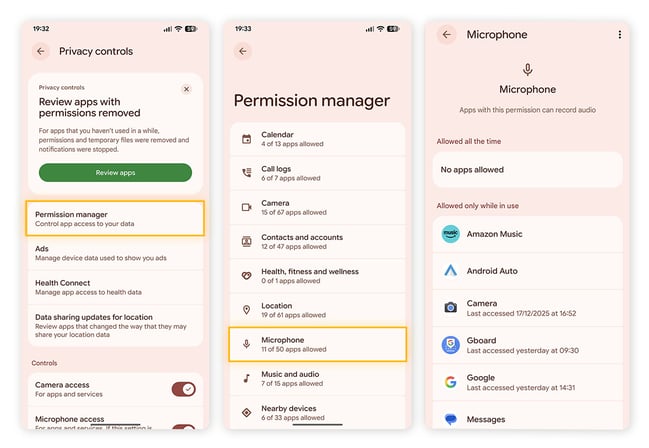
Tap Permission Manager > Microphone to see which apps have microphone access, which must ask for permission each time, and which are blocked entirely.
-
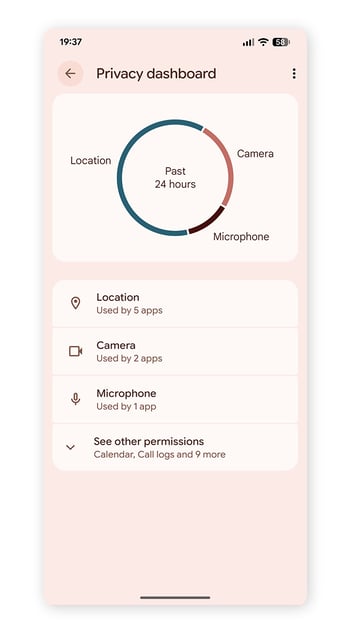
Check Privacy Dashboard (often under Settings > Privacy or Security and privacy) to view recent microphone access by app and time.
-
Look for the green microphone indicator (which varies by Android version) that appears when the microphone is active.
If you see microphone access from apps that shouldn’t need it to function, revoke access immediately and monitor to see whether the behavior stops. Regularly reviewing these settings helps you spot unusual activity early and keeps microphone access limited to apps that genuinely need it.
How to stop your phone from listening to you
If you’re concerned that your phone is listening more than it should, there are steps you can take to help rein it in. With a few simple settings adjustments, you can limit microphone access, rein in voice assistants, and reduce background data collection.
To strengthen these controls, consider pairing them with privacy tools like AVG AntiTrack. It helps block trackers and cookies used by advertisers and data miners, and shows you who’s trying to track you — and from where.
Disabling voice assistants (Siri, Google Assistant, Alexa)
You can decide how much control to give voice assistants on your phone — or disable them entirely. If you want to keep an assistant but tighten your privacy, consider turning off voice activation only to prevent people nearby from triggering actions on your phone without your consent.
You can also turn these virtual helpers off completely. Just keep in mind that disabling “Hey Siri” or “Hey Google” stops wake-word listening but doesn’t shut down all assistant features.
Siri
Open the Settings app on your iPhone. Tap Siri (or Apple Intelligence & Siri), then tap Talk to Siri (or Talk & Type to Siri).
-
To disable voice activation: Set the Talk to Siri option to Off.
-
To disable Siri entirely: Turn off Press Side Button for Siri. If your device supports Apple Intelligence, also disable Type to Siri.
If you want to disable analytics too, and stop Siri from sending transcripts to Apple, head back to Settings. Scroll down to Privacy & Security and tap on it. Then scroll down to Analytics & Improvements and tap on it. Disable Improve Siri & Dictation.
Google Assistant
Open the Google app and tap your profile picture, then select Settings > Google Assistant.
-
To stop voice activation: Tap Hey Google & Voice Match and toggle Hey Google off.
-
To disable Google Assistant entirely: Scroll to the General section, turn off the main Google Assistant switch, and confirm when prompted.
You can also set Default Assistant to "None" by navigating to Settings > Apps > Default apps (or similar). Then tap on the Digital Assistant app and set the Device Assistant App to None.
Alexa
Open the Alexa app on your phone. Tap More in the bottom-right corner, then select Settings.
-
To stop voice activation: Scroll down and tap Alexa on this Phone (or a similar option), then toggle Enable Alexa Hands-Free off.
-
To control notifications: Tap Notifications, choose specific features such as Messages, Calls, or Announcements, and switch the toggles off.
-
To stop Alexa from running in the background: Under Alexa Preferences, select Auto Mode and turn Start when you open the app off.
Managing app permissions
One of the most effective ways to protect your privacy is to regularly review app permissions and limit microphone access to apps that truly need it, such as calling or video-recording tools. Be selective and remove mic access from everything else.
Tips to help keep your smartphone private
Protecting your privacy doesn’t require drastic steps or technical expertise — it starts with a few practical habits. The checklist below outlines simple, effective actions you can take to reduce tracking, limit unnecessary access to your data, and lower the risk of malware on your device.
-
Review app permissions regularly: Remove microphone, camera, or location access from apps that don’t truly need it.
-
Keep your operating system up to date: Security patches fix known vulnerabilities that apps and trackers can exploit.
-
Audit your apps: Uninstall anything you no longer use or don’t recognize.
-
Use a VPN on public or untrusted networks: Encrypt your internet traffic with a mobile VPN to protect it from prying eyes.
-
Install trusted antivirus software: Block malicious apps, phishing links, and spyware before they can cause harm.
-
Disable unused voice assistants: Turn off always-listening features you don’t need.
-
Watch mic and camera indicators: Green or orange dots can signal unexpected access.
-
Limit ad tracking and personalization: Adjust device and app settings to reduce profiling.
For more guidance, iPhone users can explore current iPhone security tips, while Android users can find dedicated privacy advice on our blog. Smartphone privacy isn’t about one magic setting — it’s about combining smart tools with regular maintenance and ongoing vigilance.
Help protect your privacy with AVG AntiTrack
If you’re concerned about how much data your phone collects, you’re not powerless. AVG AntiTrack helps reduce online tracking, protect your personal data, and limit how much information third parties can gather about you. Take a proactive step toward stronger privacy and regain more control over your digital footprint today.
FAQs
Is it legal for phones to listen to you?
Yes, but only with your consent. Phones and apps can access your microphone if you’ve granted permission, typically through app settings or voice assistant features. Recording without consent violates privacy laws in many regions, which is why clear permissions and disclosures are required.
Can apps listen when the phone is off?
No, when a phone is fully powered off, apps can’t access the microphone or record audio. However, if the phone is on but locked or idle, apps with permission may still use the microphone in the background. Some data, such as location, can also continue to be transmitted.
Does airplane mode stop microphone access?
No, airplane mode disables wireless connections like cellular, Wi-Fi, and Bluetooth, but it doesn’t automatically block microphone access. Apps can still use the microphone unless you revoke permissions or disable the apps themselves.
Is covering the microphone useful?
Covering the microphone may muffle audio pickup, but it’s not a particularly useful or dependable privacy measure. Software controls matter far more. Managing app permissions, disabling unnecessary features, and keeping your device up to date are much more effective ways to protect your privacy.